
Your guide to Smart Pricing
Smart Pricing is a dynamic, data-driven pricing engine that automatically sets personalised, up-to-date nightly rates for your property for the next 24 months. It analyses live market conditions and adjusts your prices to help you stay competitive and attract more bookings — potentially increasing your revenue by up to 60%.
This guide explains how Smart Pricing works, how to enable it, and how to manage your prices effectively.
How Smart Pricing works
Once enabled, Smart Pricing analyses a range of live market data to determine the optimal nightly rate for your property. Prices adjust automatically every 24–48 hours based on local and seasonal demand.
Smart Pricing considers factors such as:
-
Local events (concerts, sporting events, festivals, conferences)
-
Bank and school holidays
-
Day of the week and seasonality
-
Availability of hotels and short-term rentals nearby
-
Competitor pricing and occupancy
-
Lead time (how far in advance a night is available)
Your property will always have pricing for the next 24 months. Over 99% of bookings occur within this period, so this coverage ensures your listing remains bookable year-round.
Please note this is still a nightly price per accommodation, not a charge per guest. Smart Pricing works with your nightly rate—it is not occupancy-based, and there is no option to charge extra for additional guests.
Setting your base and minimum price
When enabling Smart Pricing, you will be asked to set two values.
Base price
Your base price is the average nightly rate you expect for a typical booked night. Smart Pricing uses it as an anchor, then adjusts prices up or down depending on seasonal demand, local events, competitor activity and day-of-week patterns.
Minimum price
Your minimum price is the lowest nightly rate you are willing to accept. Consider your fixed and variable costs, such as mortgage payments and utilities, plus a profit margin.
Do not include cleaning costs if you charge a separate cleaning fee, which guests pay once per stay. If your minimum price is too high, your calendar may show the same rate for many dates, which can make your listing less competitive.
Travelnest tip If all or most dates appear at your minimum rate, review whether you can lower it while still covering your costs. This gives Smart Pricing more room to adjust your rates.
How to enable Smart Pricing
Smart Pricing is set as the default pricing option when you add a property. This gives your listing the best possible setup to boost bookings. You can turn it off at any time (see how below).
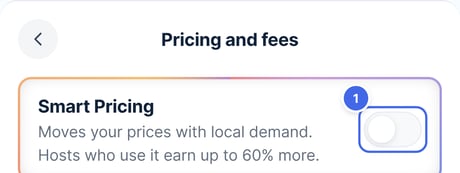
- To enable it manually: select the property in your Travelnest account, then go to Pricing and fees. Turn on the Smart Pricing (1) switch at the top of the page.
Website

Mobile app
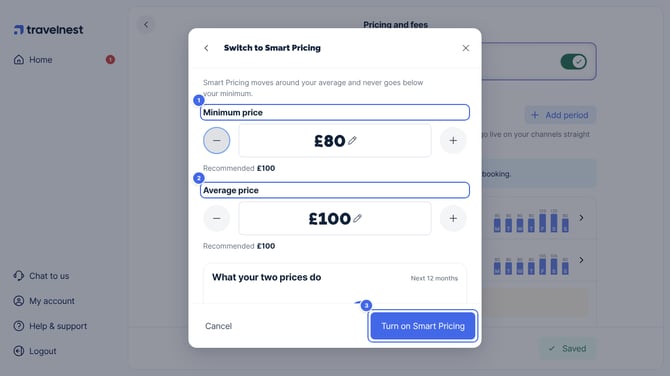
- Once you turn on the switch, you’ll need to set two key values: your Minimum price (1), the lowest rate you’re willing to accept, and your Average price (2), the nightly rate you expect most often. Your average price becomes your base price. We show a recommended price for each.
Website
Mobile app
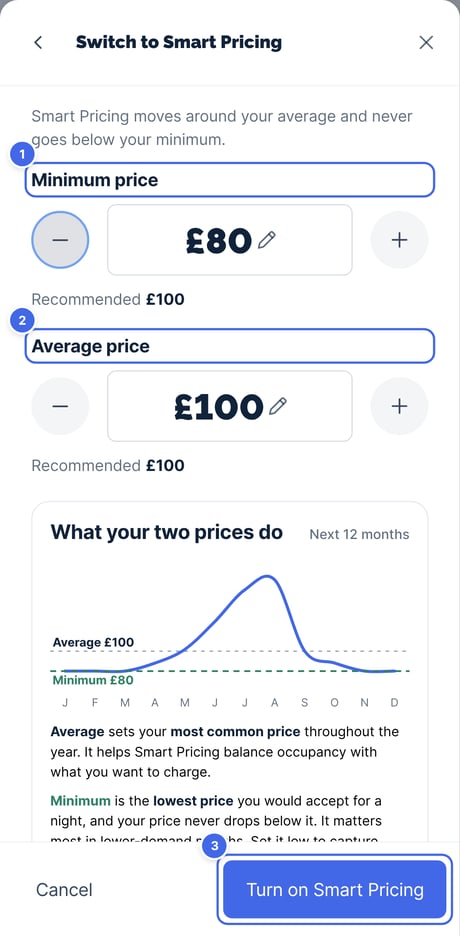
- Select Turn on Smart Pricing (3). Your arrival days, minimum stay and 7-night and 28-night discounts are under Settings on Pricing and fees, where you can change them at any time (see Editing default values below).
How to view and adjust your prices
- To view your nightly pricing, head to the Calendar section in the mobile app or web page. Once Smart Pricing is enabled, select your property from the drop‑down menu to see the rates for each night.
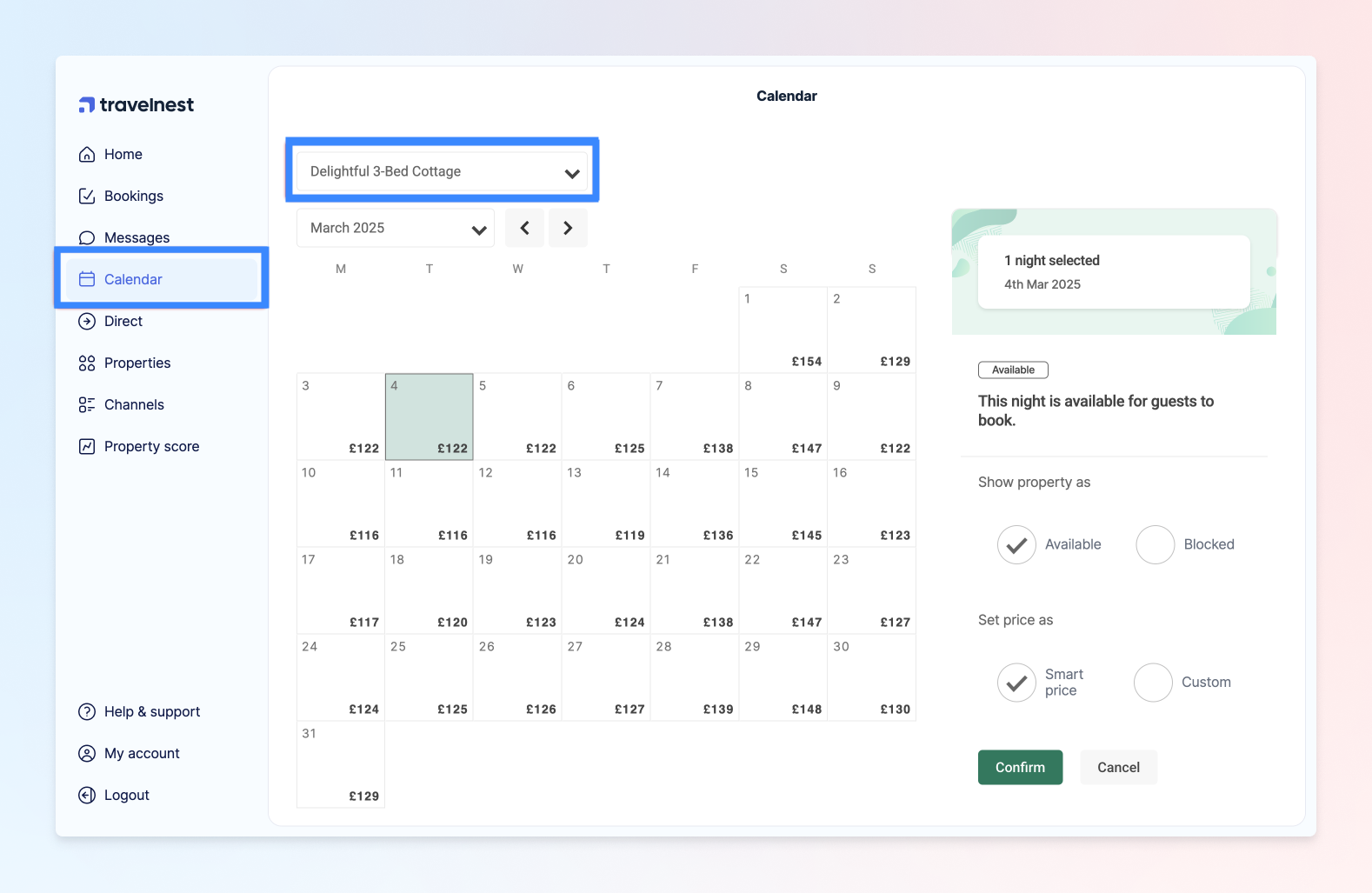
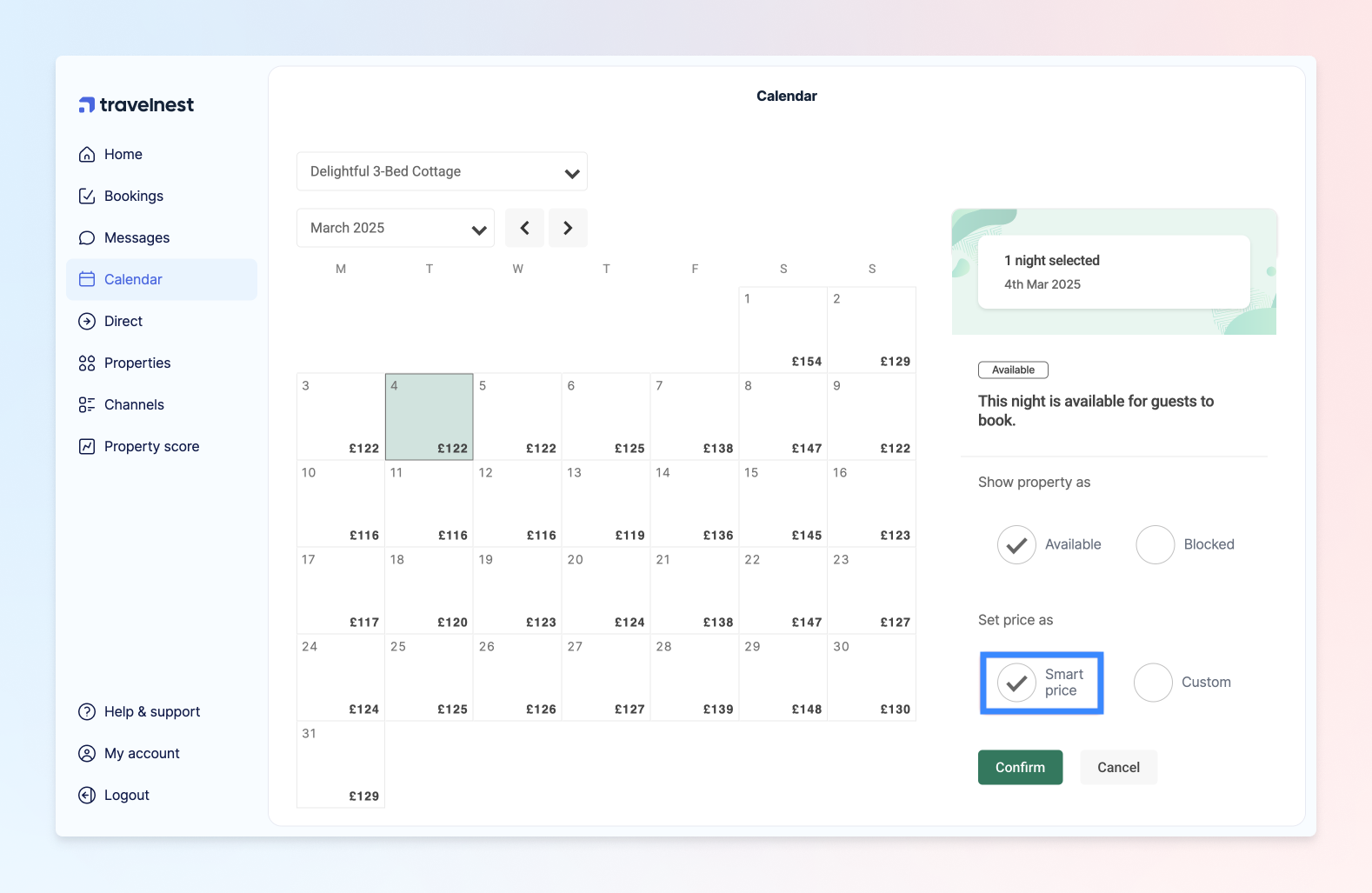
- If you want to override Smart Pricing for certain dates (for example, Christmas or a local event): select the dates you want to update, then switch the toggle from Smart price to Custom price (on mobile, tap the nightly rate in the pop-up menu).
- Enter your preferred nightly rate — this will replace the Smart Pricing rate for those dates.
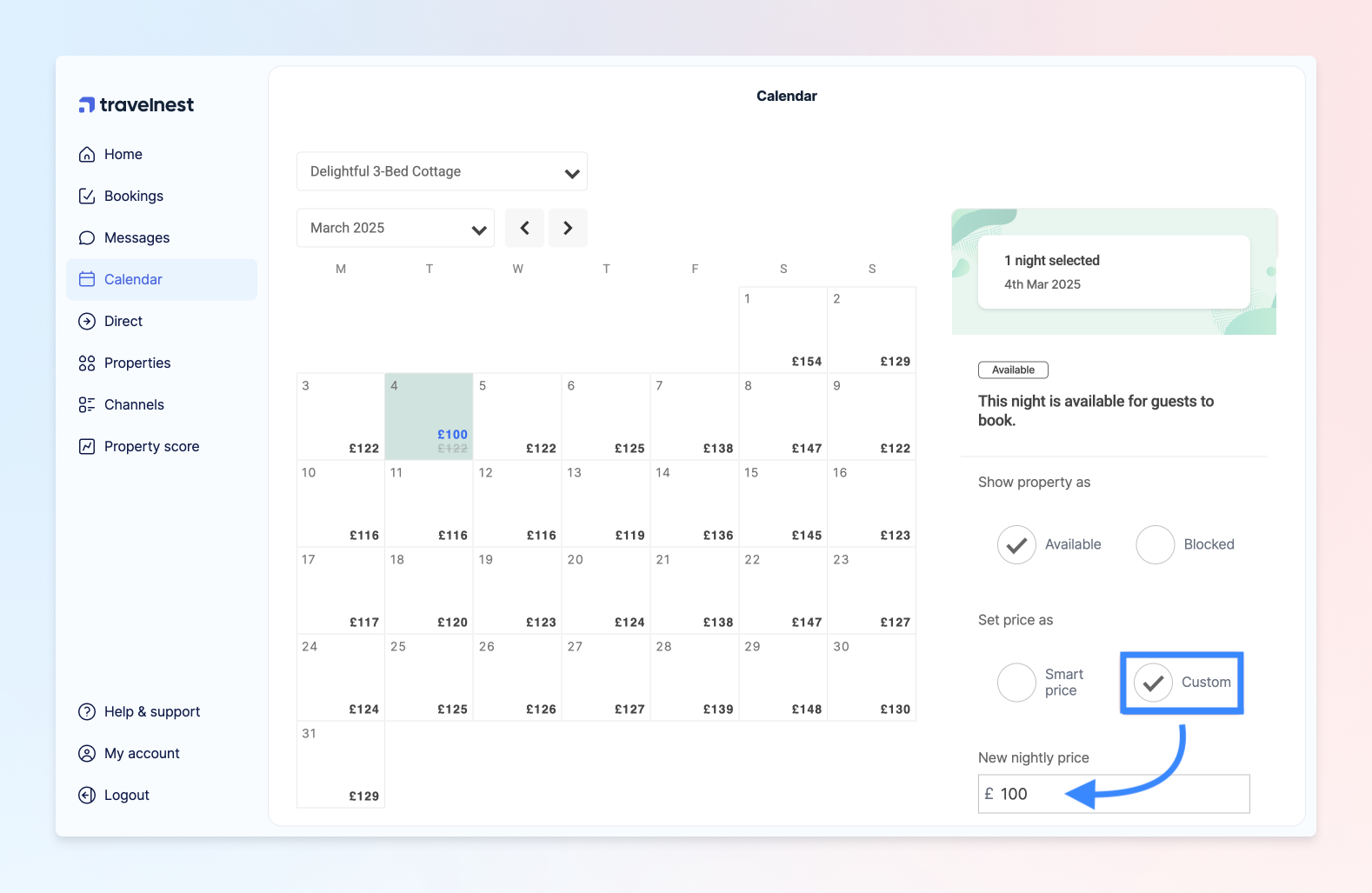
- You can switch back to Smart Pricing at any time by toggling Smart Price on again, or tapping Switch back to Smart Pricing in the mobile app.
Editing default values
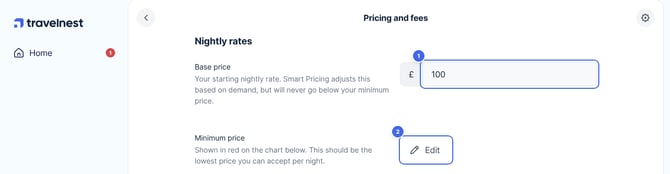
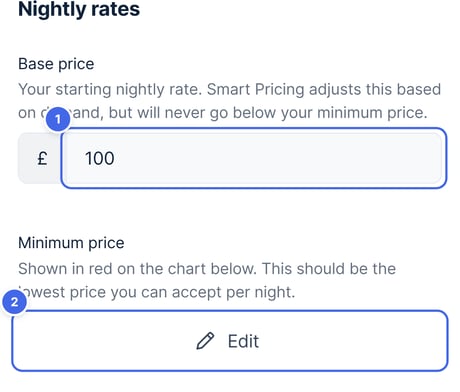
- You can update your minimum price, check‑in days, minimum stay or longer‑stay discounts at any time by going to the Pricing and fees section of your account. Change your base price (1) directly, or click Edit next to your minimum price (2). Arrival days, minimum stay and discounts are under Settings, further down the page. Then click Save changes.
Website
Mobile app
Please note: once Smart Pricing is enabled it applies a single set of default values across your 24-month booking window. You can’t set different defaults for specific periods, although you can always manually edit prices for individual nights if needed.
See what you'd take home
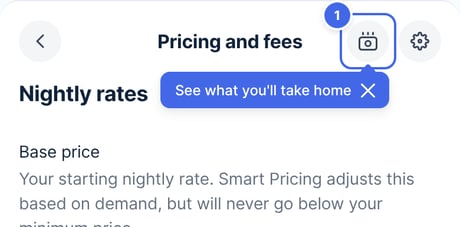
- On Pricing and fees, select Estimate take-home (1), next to the Settings (cog) icon. On a phone, it's the icon at the top right.
Website

Mobile app
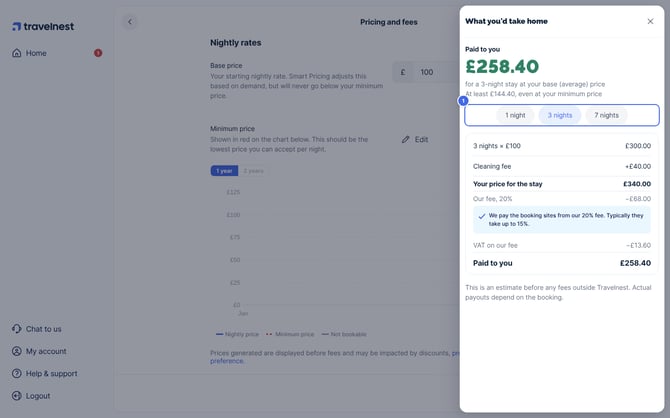
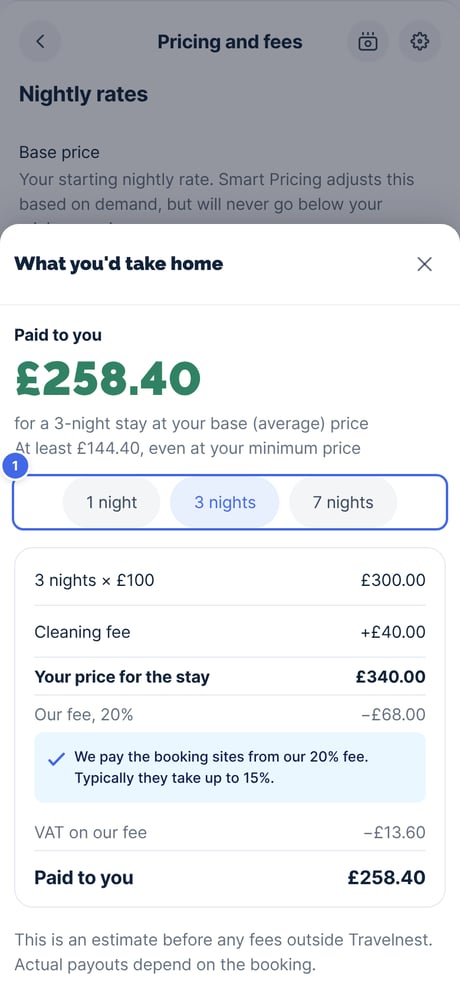
- Choose a stay of 1, 3 or 7 nights (1). We show what you'd be paid for that stay at your base price, which is your average nightly rate, plus your cleaning fee, after our 20% fee and VAT on our fee if your account is registered in the UK.
- If your minimum price is lower than your base price, we also show the least you'd be paid for the same stay, even at your minimum price.
- Smart Pricing moves your prices with demand, so what you're paid will vary with the dates booked.
Website
Mobile app
Disabling Smart Pricing
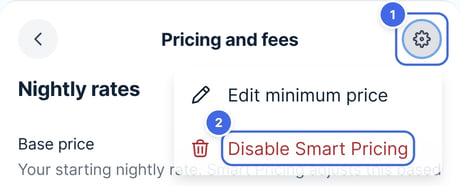
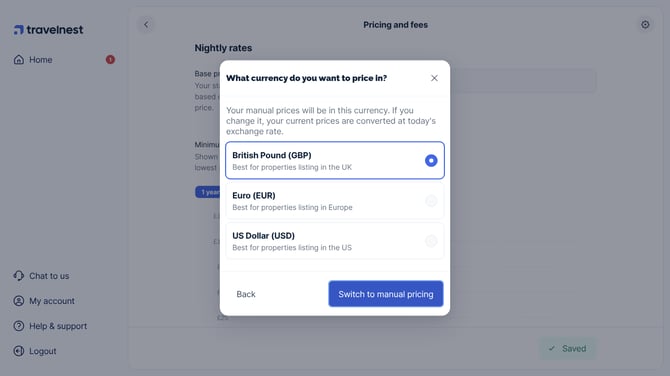
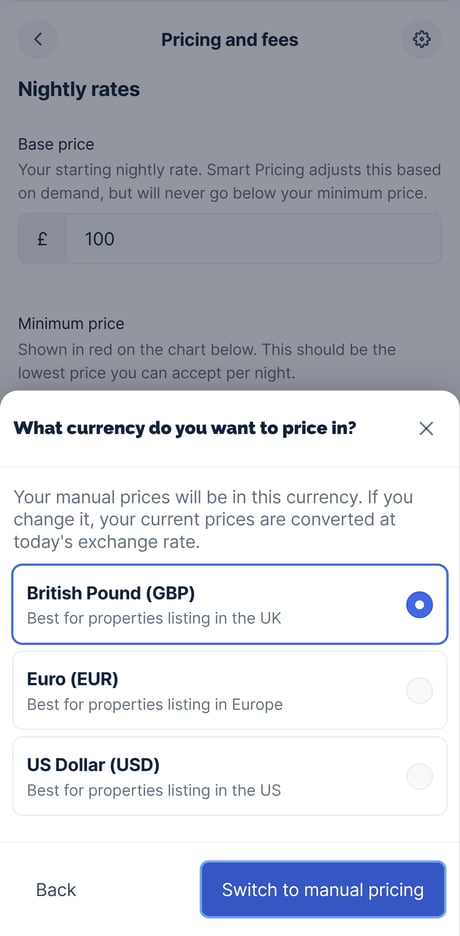
- You can disable Smart Pricing at any time from the Pricing and fees section of your account. Simply click the Settings (cog) icon (1) in the top right-hand corner of the page and select Disable Smart Pricing (2) to switch back to Manual Pricing. You'll then be asked what currency you want to price in. Choose one and select Switch to manual pricing. If you choose a different currency, your prices are converted at today's exchange rate.
Website

Mobile app
Website
Mobile app
- Once turned off, any manual pricing periods you previously created will be restored automatically.
If Smart Pricing isn't available
In areas where Smart Pricing isn’t currently available, you can use Generate prices on Pricing and fees, which creates prices for the next 24 months from a standard price and the seasonality you choose. This can be a useful alternative while Smart Pricing support expands.
Best practices for success
- Review your minimum price regularly — if most dates show your minimum rate, lower it slightly to stay competitive.
- Avoid setting your minimum too close to your base price, as this limits flexibility.
- Check your calendar periodically to ensure your rates reflect current demand.
- Combine Smart Pricing with seasonal availability and special promotions to maximise occupancy.
Frequently asked questions
How often does Smart Pricing update?
Every 24–48 hours, based on live market data.
Can I set Smart Pricing for more than 24 months?
No. Smart Pricing automatically covers the next 24 months.
How can I limit how far ahead guests can book?
If you only want to accept bookings for a shorter period, such as the next six months, block the later dates in your calendar before or after enabling Smart Pricing.
For instructions, see How to block or unblock dates on your calendar.
What happens if I already have pricing when I enable Smart Pricing?
Your existing pricing periods are preserved, but they are not used while Smart Pricing is enabled. They are restored when you disable Smart Pricing.
What happens if I disable Smart Pricing?
Your previously saved manual pricing periods are restored automatically.
What if my prices seem too high or too low?
Review your base and minimum prices. If your minimum is too high, Smart Pricing cannot adjust below it. If prices seem too low, consider raising your base price slightly.
For more information, see Overpricing when using Smart Pricing.
Can I still offer weekly or monthly discounts?
Yes. You can apply discounts for 7-night and 28-night stays in your Smart Pricing settings.
Does the price change based on the number of guests?
No. Smart Pricing sets a nightly rate per accommodation, regardless of how many guests stay. Travelnest does not support additional charges based on guest numbers.