
Managing Travelnest from your phone
Everything you have set up in Travelnest is available in the app too, including your bookings, guest messages, calendar and listing details. Use the same account to add, manage and update your information, just as you would on the website, wherever you are.
Download the app to keep track of new bookings, reply to guests and quickly block or unblock calendar dates from your phone.
Please note: You must be a Travelnest host to use the app.
How do I get the app?
Download the app for your device:
- iPhone or iPad: Download from the Apple App Store.
- Android: Download from Google Play.


Once installed, log in using your Travelnest account details. You can use the email login route or Google or Facebook with an email address that matches your Travelnest account.
What can I do in the Travelnest app?
Manage your bookings
- View upcoming, current, past and cancelled bookings.
- Review booking and guest details.
- Keep track of bookings across your properties.
Message your guests
- Send messages and review conversations.
- Manage scheduled guest messages.
- View guest reviews.
Messaging availability depends on the booking channel. See the messaging questions below for details.
Manage your calendar
- View availability across your properties.
- Block or unblock dates.
- Connect external calendars and manage calendar connections.
Manage your pricing and booking settings
- Enable and manage Smart Pricing.
- Add, edit or remove manual pricing periods.
- Generate seasonal prices.
- Update nightly rates and long-stay discounts.
- Set minimum stays, allowed check-in days and booking notice.
- Choose your cancellation policy.
- Update cleaning fees and security-deposit settings for applicable channels.
Manage your property’s listing details
- Add or update your property headline, description and nickname.
- Add and manage property photos.
- Update the property address, location and map pin.
- Update bedrooms, bathrooms, beds and guest capacity.
- Review amenities and house rules.
- Set check-in and check-out times, check-in methods and access instructions.
- Submit regulation and compliance information.
Please note you can manage your property’s listing details in the app, just as you would on the Travelnest website. If you manage multiple properties, make sure you select the correct property before making changes.
Manage your booking channels
Add or remove booking channels to choose where your properties are advertised.
Manage your account
- Update personal details.
- Change your password.
- Update payout details.
- Manage account settings.
- Start the account-closure process if you no longer want to use Travelnest.
Manage your direct booking site
If you use Travelnest Direct, open Direct Hub to:
- Find guidance on making the most of your direct booking site.
- Apply promotions.
- View your direct booking site.
Frequently asked questions
Is everything available in the app?
Yes. You can add, manage and update your bookings, guest messages, calendar, listing details and account information in the app, just as you would on the Travelnest website. Everything you have already set up is available through the same account.
How can I view my bookings?
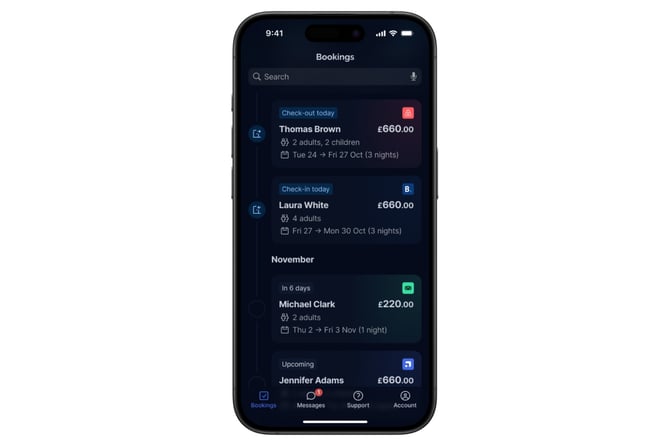
Open Bookings to see bookings that are in progress, upcoming, completed or cancelled.
Use the search bar to search by name, channel or month. If you manage multiple properties, the property nickname appears alongside each booking.
How can I view more details about a booking?
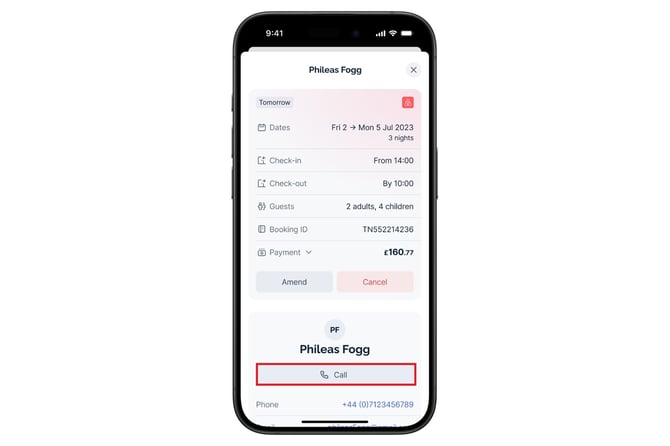
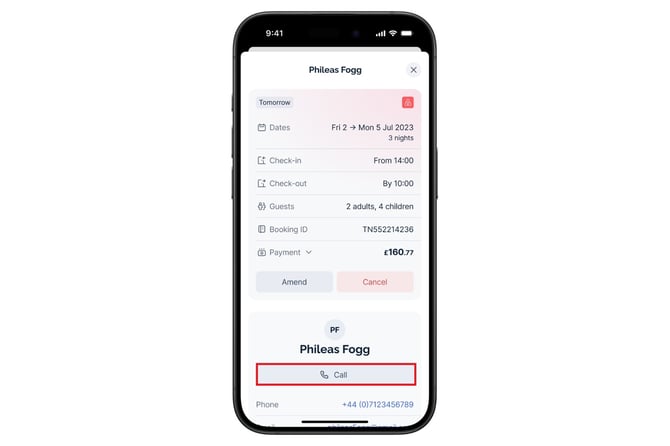
Tap the booking to see guest information, the length of stay, check-in and check-out dates, the number of guests and a payment breakdown.
Where available for that booking, you can message the guest or use the displayed phone contact option. Do not assume every channel provides a guest phone number.
How can I view my messages?
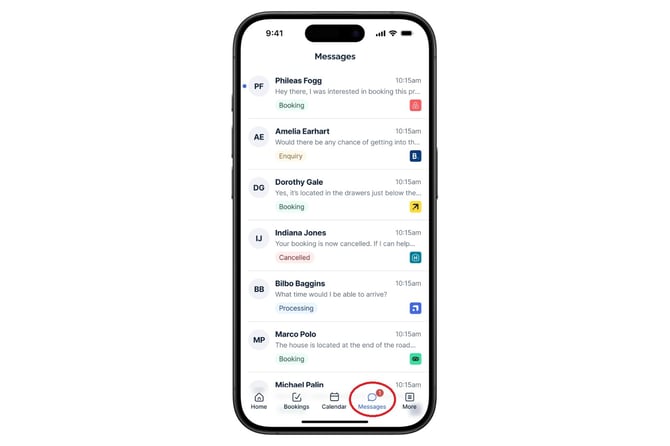
Open Messages to see your conversations. Tap the guest’s name to read and respond to their messages.
The Messages section displays conversations from guests who booked or enquired through Airbnb, Booking.com, Expedia and Vrbo. You need a property listed on one of those channels through Travelnest to see these messages.
How can I message my guests?
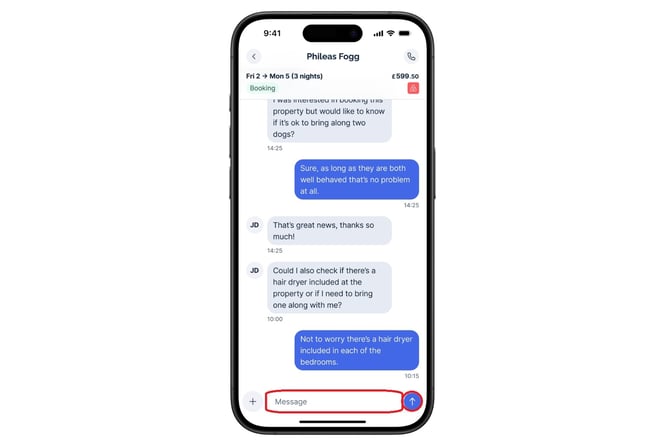
Open the conversation, enter your response in the text field at the bottom of the screen and tap the send button (arrow icon).
Can I send attachments in my messages?
Airbnb
You can send and receive attachments for confirmed Airbnb bookings in the Travelnest app or on the website. Attachments are not supported for Airbnb enquiries.
Booking.com, Expedia and Vrbo
You can send messages and attachments for confirmed bookings.
You cannot receive attachments from guests through Travelnest.
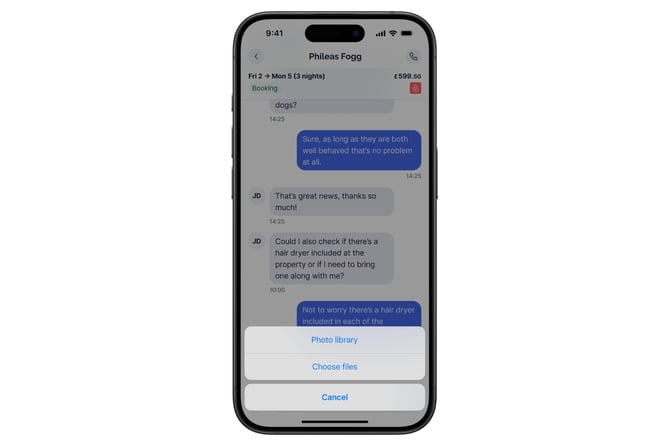
To send an attachment, tap the + icon next to the message field, then choose a photo from your device’s library or select a file.
How can I archive my messages?
Message archiving is not currently available.
How can I get support if I need it?
Open Support in the app to find guides, updates and the host helper, or to contact Host Support through live chat.
For more contact information, see How to contact Travelnest.
How can I update my personal information?
Open Account to access your personal details without logging in again. From there, you can update your personal or payment information, or change your password.
Does the Travelnest app have a dark mode?
Yes. The app follows your device’s display settings for light or dark mode.
What happens when I tap a messaging push notification?
The app opens the messaging screen, where you can view your messages.
What happens when I tap a booking push notification?
The app opens the booking screen, where you can view your bookings.