A minimum night stay is the shortest duration a guest can stay for the dates they want to book. The setting is found in the property’s Pricing and discounts section.
The way you find and update the minimum night stay depends on whether the property uses Smart Pricing or Manual Pricing.
Smart Pricing
- Go to Properties and select the property.
- Select Pricing and discounts.
- Scroll down past the pricing graph to Minimum stay.
- Select the drop-down arrow to open the section.
- Set or update the minimum number of nights, then save your changes.
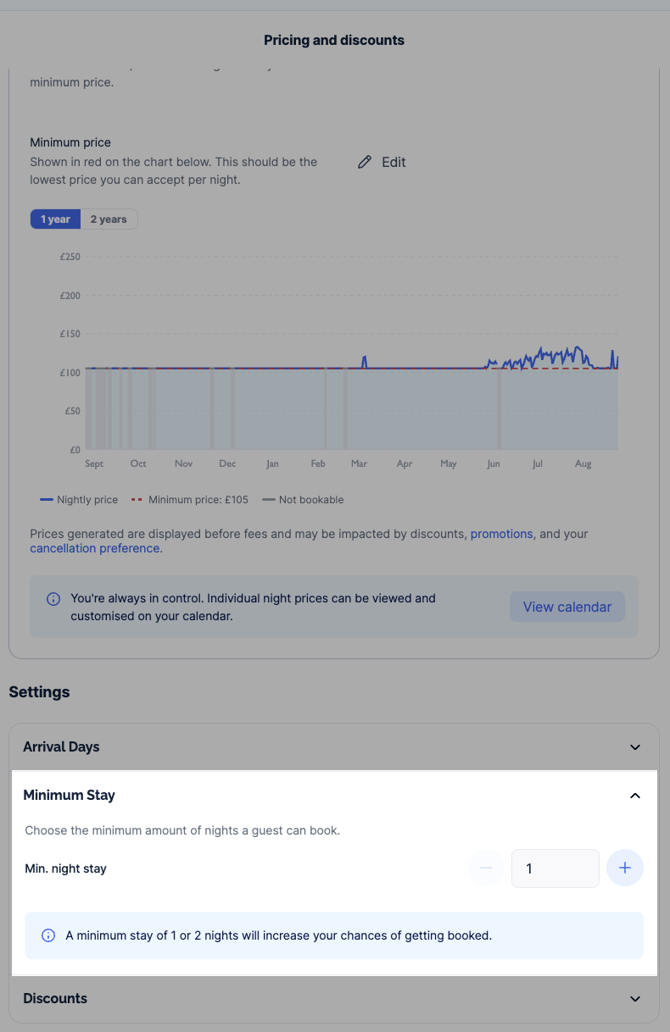
The Smart Pricing minimum stay applies across the full Smart Pricing period. It cannot be changed separately for individual weeks or seasons.
Manual Pricing
- Go to Properties and select the property.
- Select Pricing and discounts.
- Find the pricing period you want to change. Pricing periods may be set up weekly, monthly or seasonally.
- Select Edit next to the relevant pricing period.
- Find What is the shortest duration a guest can stay for? This appears above the nightly pricing for each day of the week.
- Set or update the minimum number of nights, then save your changes.
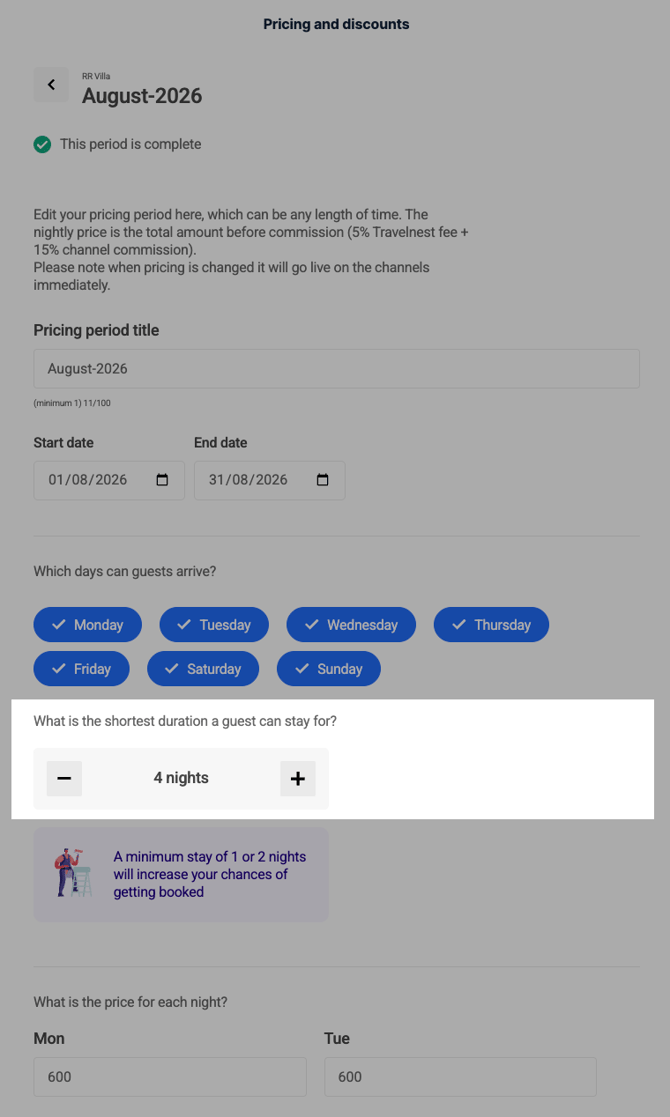
With Manual Pricing, different pricing periods can have different minimum night stay requirements. For example, an August pricing period could have a three-night minimum stay, while a September pricing period could have a two-night minimum stay.
How to check how many nights a guest has booked
- Go to the Bookings tab in your Travelnest account.
- Scroll to the booking you want to check and select it if needed.
- Find the guest’s check-in and check-out dates.
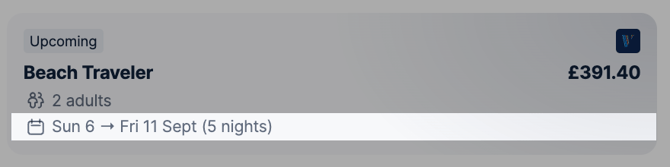
- The number of nights booked is shown in brackets next to the dates.