
How do I synchronise my Airbnb calendar with Travelnest?
If you’re listing your property on other booking sites through Travelnest, but managing your Airbnb listing directly, it’s essential to synchronise your Airbnb calendar with Travelnest.
This ensures your availability is always up to date across all platforms, helping you avoid double bookings and ensuring guests can see accurate dates when making a reservation.
To sync your calendars correctly, it’s important to complete both the import and export steps outlined below — this creates a two-way connection so that updates flow seamlessly between Airbnb and Travelnest.
Before you start
You can do this on the Travelnest website or in the Travelnest app. In the app, go to Calendar, choose the property, then tap the calendar icon in the top-right corner to open Connect calendars.
The steps below include screenshots from both the Travelnest website and mobile app. Follow the screenshots labelled Website or Mobile app, depending on which you’re using.
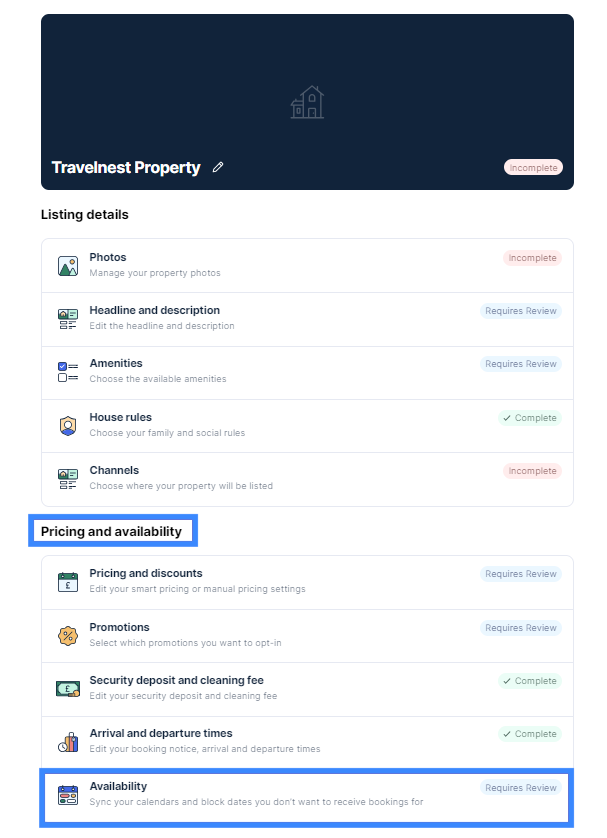
If you’ve just created a Travelnest account and want to sync calendars before your property is published, you can find your calendar under Pricing and availability > Availability.
How to synchronise your Airbnb calendar with Travelnest
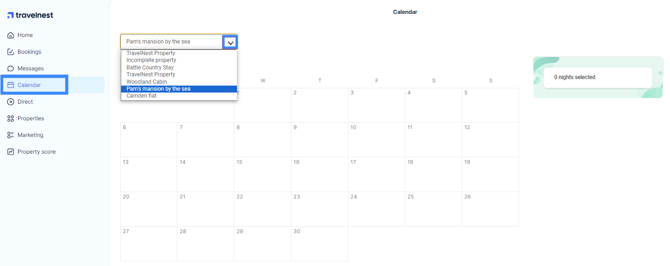
- Log in to your Travelnest account and, from the left-hand side menu, select Calendar. If you have multiple properties, you'll see a drop-down box above the calendar where you can choose the calendar for each specific property.
- Once you’re viewing the correct property calendar, click the cog icon in the top-right corner, then select Connect calendars.

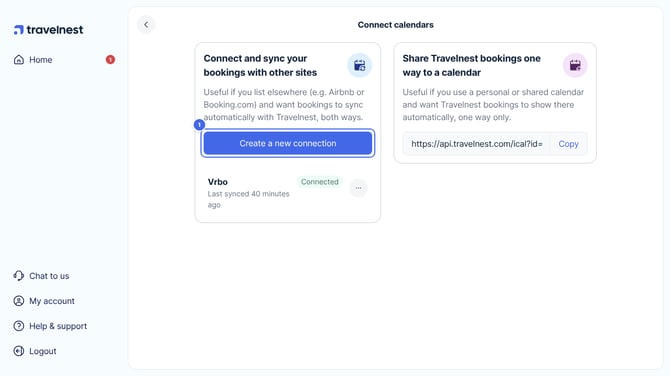
- On the following screen, click Create a new connection (1).
Website
Mobile app
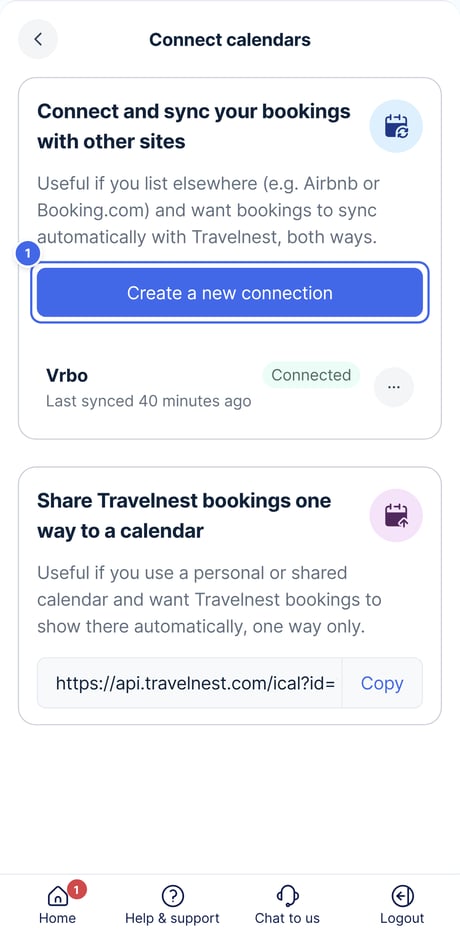
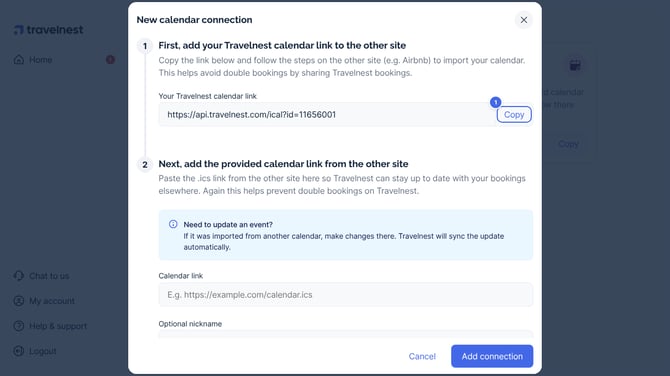
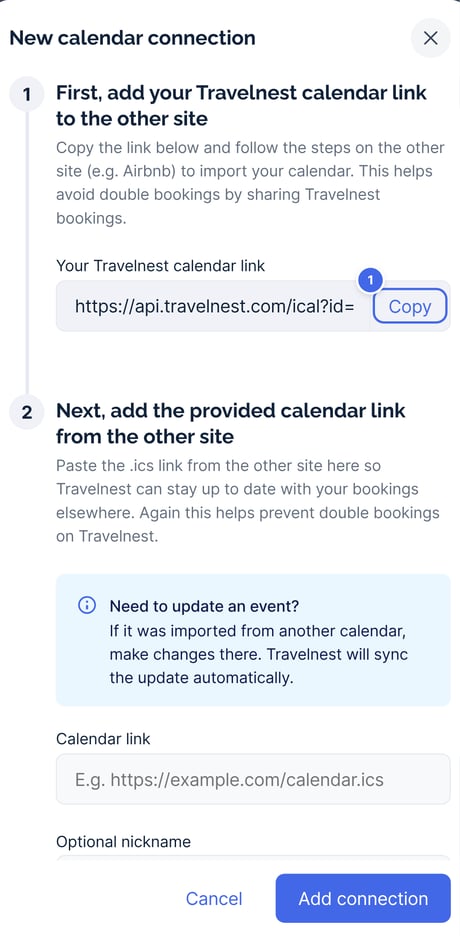
- Click Copy (1) to copy your Travelnest calendar link — this will be used in the next step to connect your Travelnest calendar with Airbnb.
Website
Mobile app
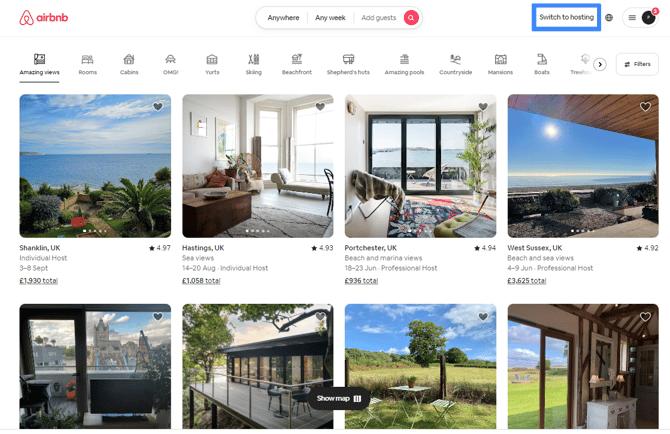
- Next, log in to your Airbnb account and click Switch to hosting.
- Then, click Listings.

- Select the property you’d like to synchronise. (We don't recommend skipping this step as it is important for you to choose the correct listing to sync calendars, especially if you have more than one property on your Airbnb account.)

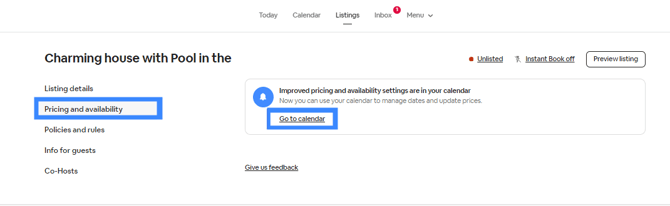
- Then, click Pricing and Availability, then click Go to calendar.
- On the right-hand side, click Availability, then scroll down and choose Connect calendars.
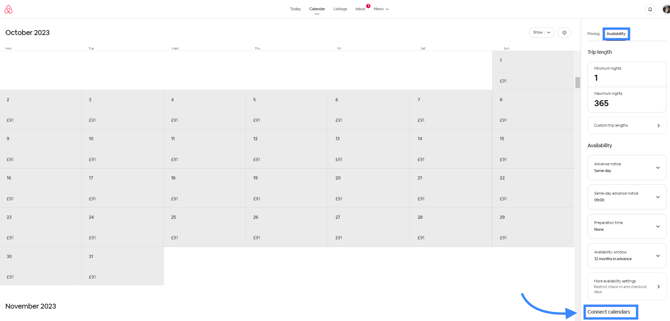
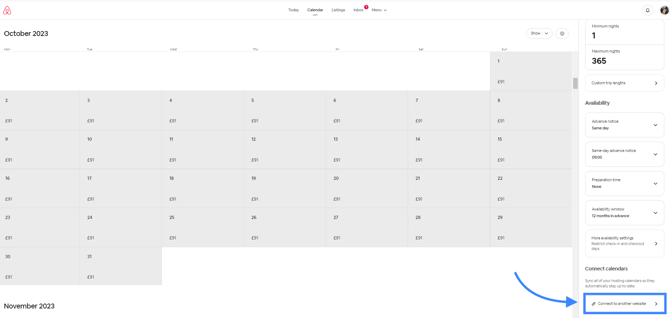
- Select Connect calendar to another website.
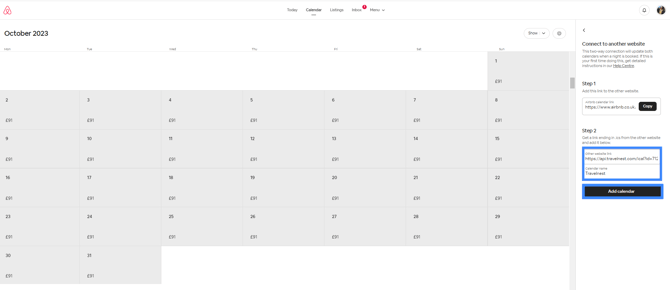
- Paste the iCal link you copied from Travelnest and name the calendar (e.g., Travelnest). Then click Add calendar.
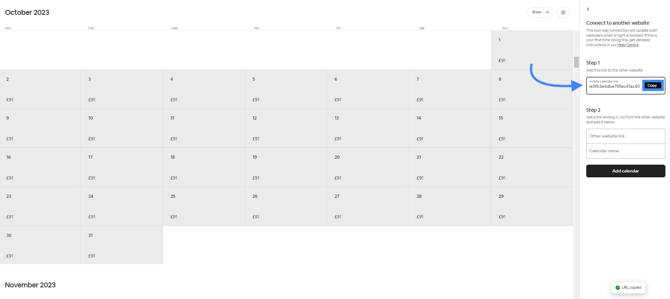
- Once you've pasted the Travelnest calendar, it's now time to export your Airbnb calendar to Travelnest. Still in Airbnb, under the same Connect calendars section, click Copy link to export your Airbnb calendar.
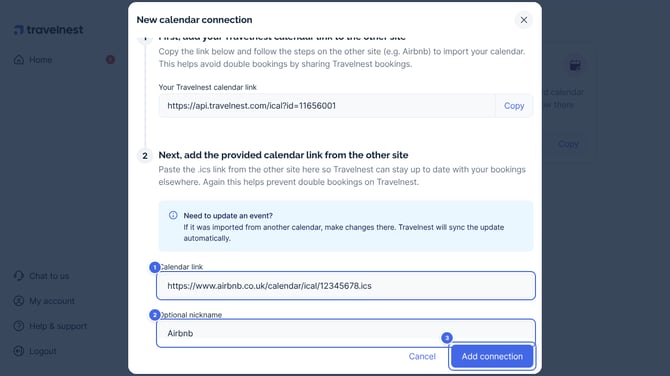
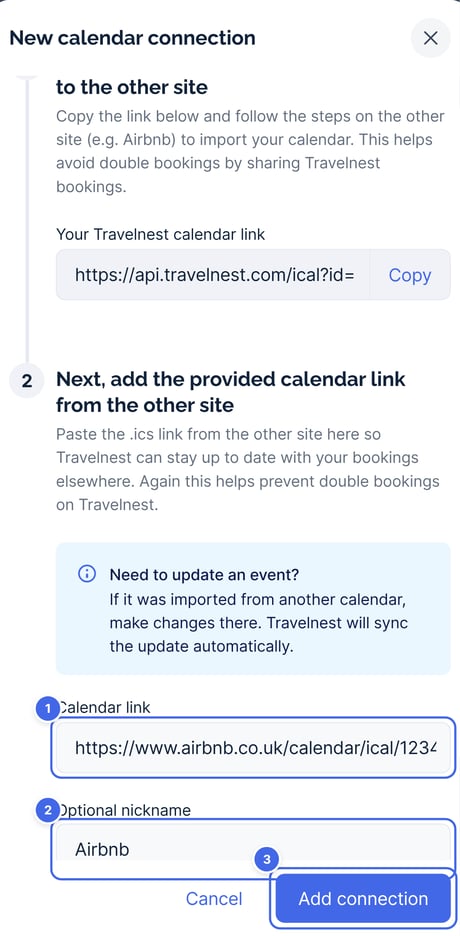
- Next, go back to your Travelnest calendar and paste the Airbnb link you copied into Calendar link (1), name the calendar Airbnb (2), then click Add connection (3).
Website
Mobile app
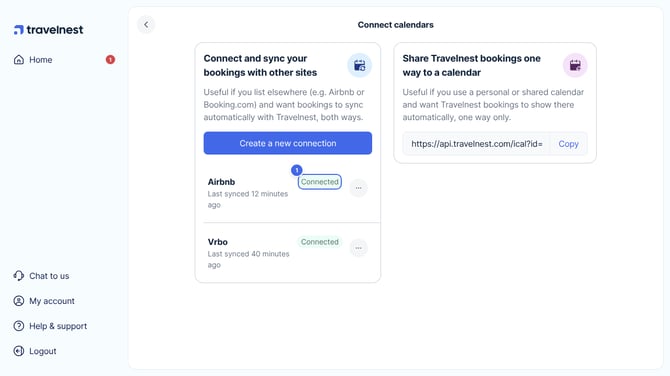
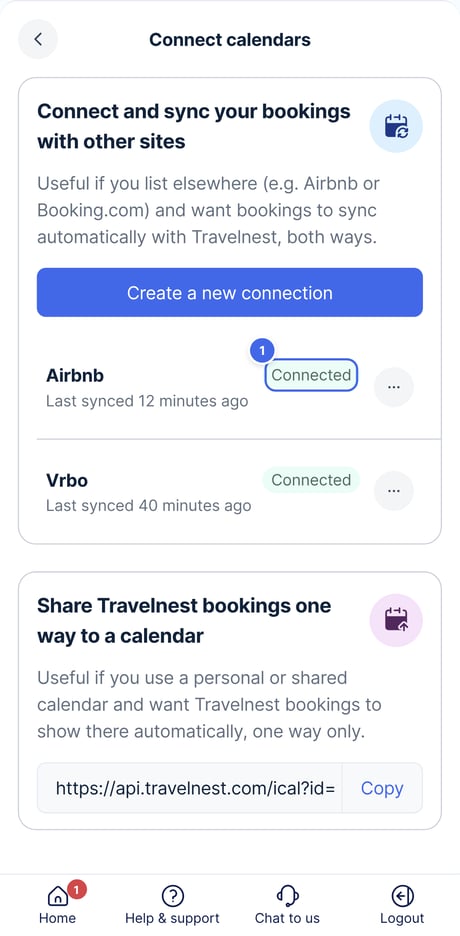
Once both calendars are connected, please allow a few hours for the sync to complete. You will see Connected (1) displayed next to the Airbnb sync once it has successfully synchronised.
Website
Mobile app
Frequently asked questions
How can I check if my Airbnb bookings are showing in Travelnest?
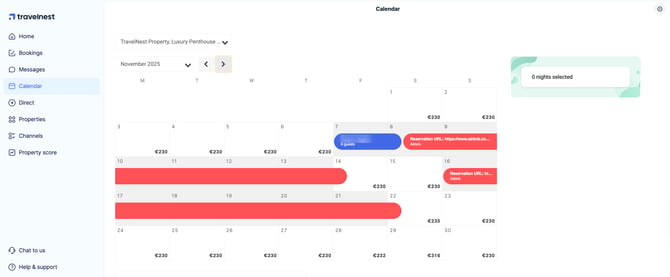
Airbnb sync bookings will appear as red lines in your Travelnest calendar, making it easy to identify reservations that have come from your Airbnb sync. Your own Travelnest bookings will appear in blue and will only show the guest’s name, without any channel names connected. This way, you can quickly distinguish between Airbnb reservations and bookings made directly through Travelnest.
I list directly with Airbnb — should I deselect Airbnb from my Travelnest channels?
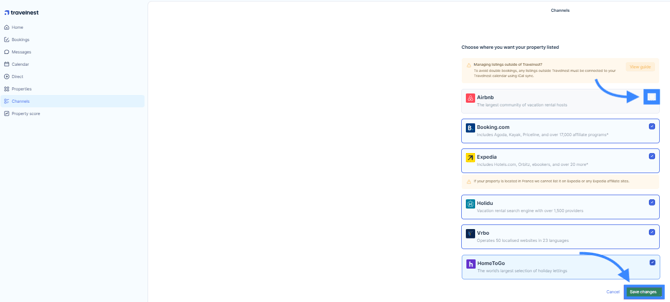
Yes — If you’ve connected your Airbnb calendar properly and are managing your Airbnb listing directly, you must deselect Airbnb in your Channels section to avoid duplicate listings, as duplicate listings are not allowed.
Can Travelnest connect my calendars for me?
Unfortunately, no — If your Airbnb listing is managed directly by you (and not through Travelnest), we don’t have access to your personal Airbnb account to perform the synchronisation on your behalf.
However, if you’d like guidance while setting this up, our Host Support team will be happy to assist. You can find details on how to contact us here.
What if I need to cancel a booking?
If a double booking occurs because calendars haven’t been synced correctly, Travelnest reserves the right to charge a £160 (plus VAT) cancellation fee per booking, as outlined in our Terms and Conditions.
To avoid this, make sure your calendars are connected using iCal, and block any unavailable dates manually.
If you need help cancelling a booking, please refer to our cancellation guide here.