
Understanding seasonal pricing
Demand for properties changes throughout the year, depending on holidays, local events and weather patterns. Seasonal pricing lets you set rates that reflect these changes.
This guide explains how to create seasonal pricing using Generate prices. If you prefer rates that adjust automatically using live market data, consider Smart Pricing instead.
Good to know
- Your property cannot go live on booking sites until you have added pricing.
- Aim to keep at least 12 months of pricing available.
- Allow guests to check in on as many days as you can accommodate to help your property appear in more searches.
- Your property can accept bookings for the pricing periods you add, subject to calendar availability and stay restrictions.
- If your property is unavailable for certain dates, block them in your calendar. For instructions, see How to block or unblock dates on your calendar.
- If you ask us to cancel a booking for unblocked dates, a £160 (plus VAT) cancellation fee per booking will apply.
How to generate seasonal pricing
- Log in to your Travelnest account. From your homepage, select the property you’d like to update. Scroll down to Pricing and availability (1) and select Pricing and fees (2).
Website

Mobile app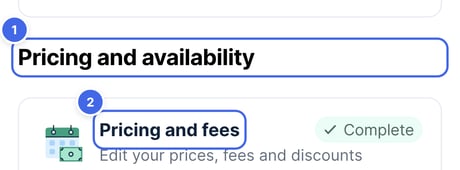
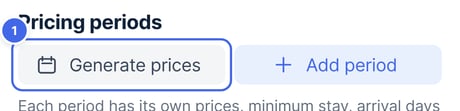
- Under Pricing periods, select Generate prices (1). We’ll create prices for the next 24 months, one pricing period for each month.
Website

Mobile app
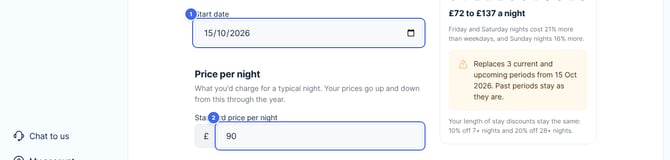
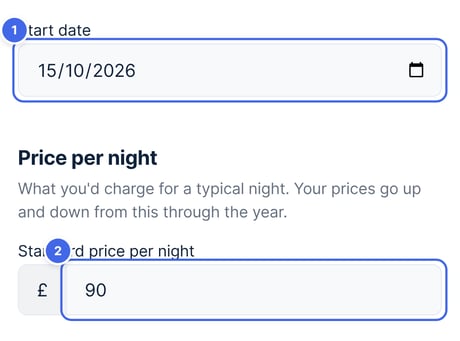
- If you already have prices, choose a Start date (1). Your new prices replace any you have from that date. To keep your prices and add more after them, choose the date we suggest: the day after your last priced night.
- Enter your Standard price per night (2), what you’d charge for a typical night. Your prices go up and down from this through the year.
Website
Mobile app
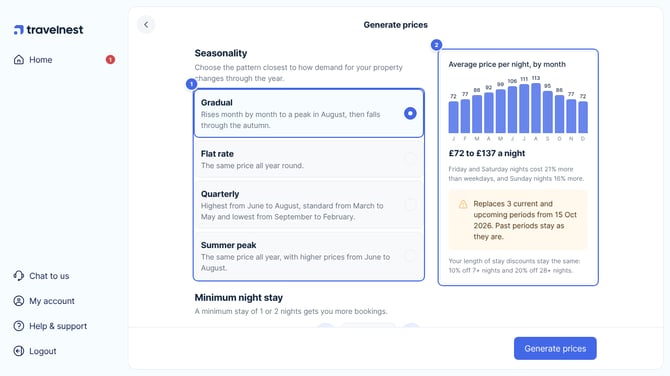
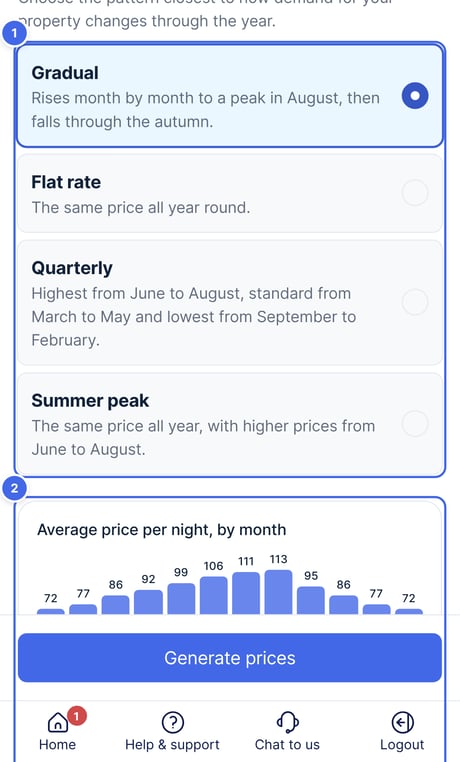
- Choose the Seasonality (1) that best suits your property. The four options are explained below.
- The preview (2) shows your average price per night for each month, your price range, and what generating will do. Friday and Saturday nights cost 21% more than weekdays, and Sunday nights 16% more. Your length of stay discounts stay the same.
Website
Mobile app
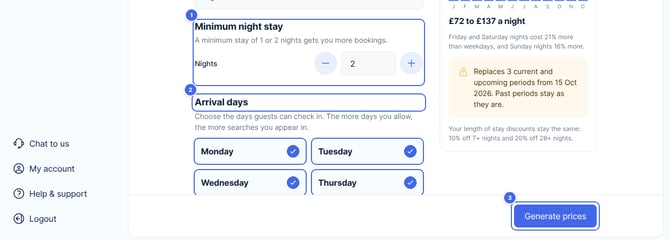
- Set your Minimum night stay (1). Keep this as low as possible.
- Choose your Arrival days (2). Allow as many check-in days as possible to maximise visibility.
- Select Generate prices (3).
Website
Mobile app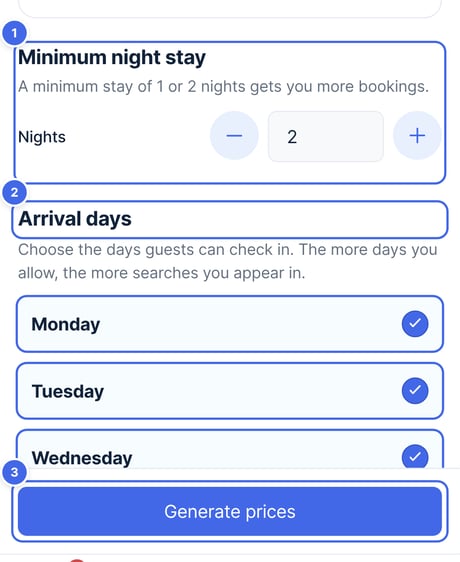
Seasonality options explained
| Option | How the pricing works | When it may suit your property |
|---|---|---|
| Flat Rate Seasonality | Uses the same pricing throughout the year. | You prefer consistent rates. |
| Quarterly Seasonality | Uses different pricing for spring (March–May), high summer (June–August) and low autumn/winter (September–February). | Your property has stronger summer demand and lower winter demand. |
| Gradual Seasonality | Uses a similar seasonal pattern to Quarterly Seasonality, but with smoother increases and decreases during the year. | You want gradual changes rather than distinct seasonal jumps. |
| Summer Peak Seasonality | Uses a consistent rate outside summer, with an uplift for June–August. | You want simple year-round pricing with a clear summer uplift. |
If none of the options fits exactly, select the closest match and edit the resulting pricing periods as needed. Alternatively, consider Smart Pricing for automatic rate adjustments.
Finalising your pricing
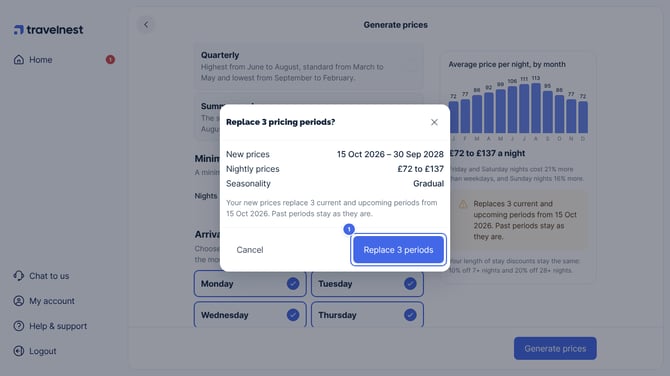
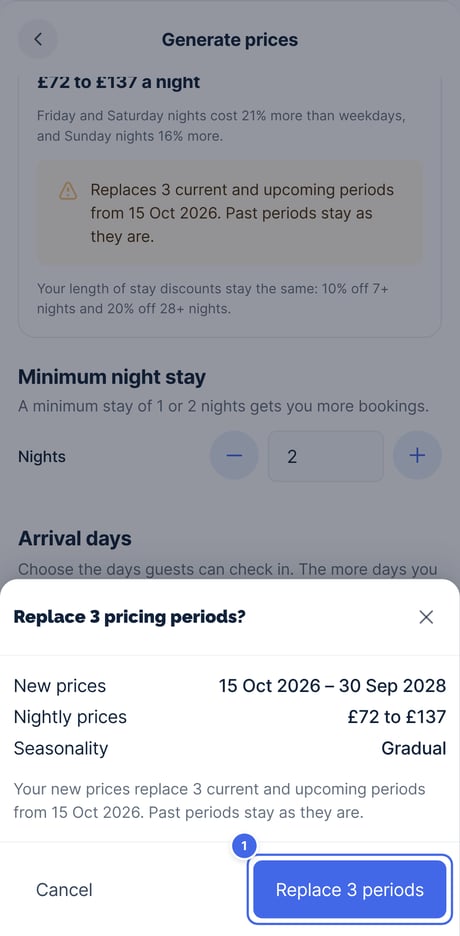
- If your new prices replace any current or upcoming pricing periods, we’ll ask you to confirm first. Check the dates and prices, then select Replace (1). Past periods stay as they are.
- Your pricing is generated for the next 24 months, and you’ll go back to Pricing and fees, where you can change any period.
Website
Mobile app
How to set up pricing automatically
To save time and avoid manual updates, we recommend enabling Smart Pricing.
This dynamic, data-driven tool automatically sets personalised nightly rates for your property for the next 24 months, adjusting prices based on local market trends and demand. Using Smart Pricing can increase your revenue by up to 60%.
For setup instructions, see How to enable and optimise Smart Pricing.
How to edit or amend an existing pricing period
You can update the rates and stay restrictions in individual generated pricing periods.
For instructions, see How to add and amend manual pricing.