Managing your property details on the go
Everything you have set up in Travelnest is available in the app too, including your bookings, guest messages, calendar and listing details. You can add, manage and update your information from your phone, just as you would on the website.
This guide focuses on updating your property’s headline, description and nickname so your listing stays accurate.
If you manage multiple properties, make sure you select the correct property before making changes.
How do I open my property details?
Open the Travelnest Mobile App
- Start by launching the Travelnest app on your mobile device.
Navigate to the Home Screen
- Upon opening the app, you'll land on the home screen. Here, you'll see a list of your properties under the Your Properties section.
Select your property
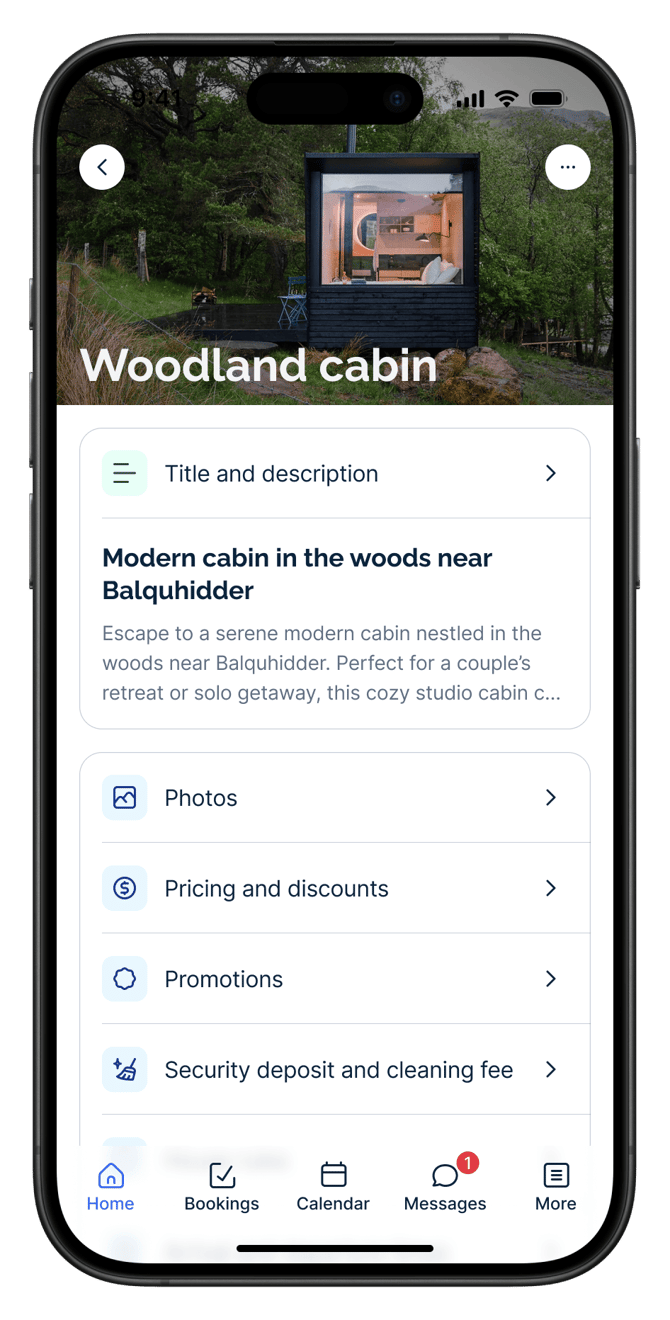
- Tap on the property you want to edit. This will take you to the property screen where you can manage various settings for that listing.
How do I edit my headline and description?
Tap on Headline and Description: This option allows you to update the headline and description that appear on your property’s listing.
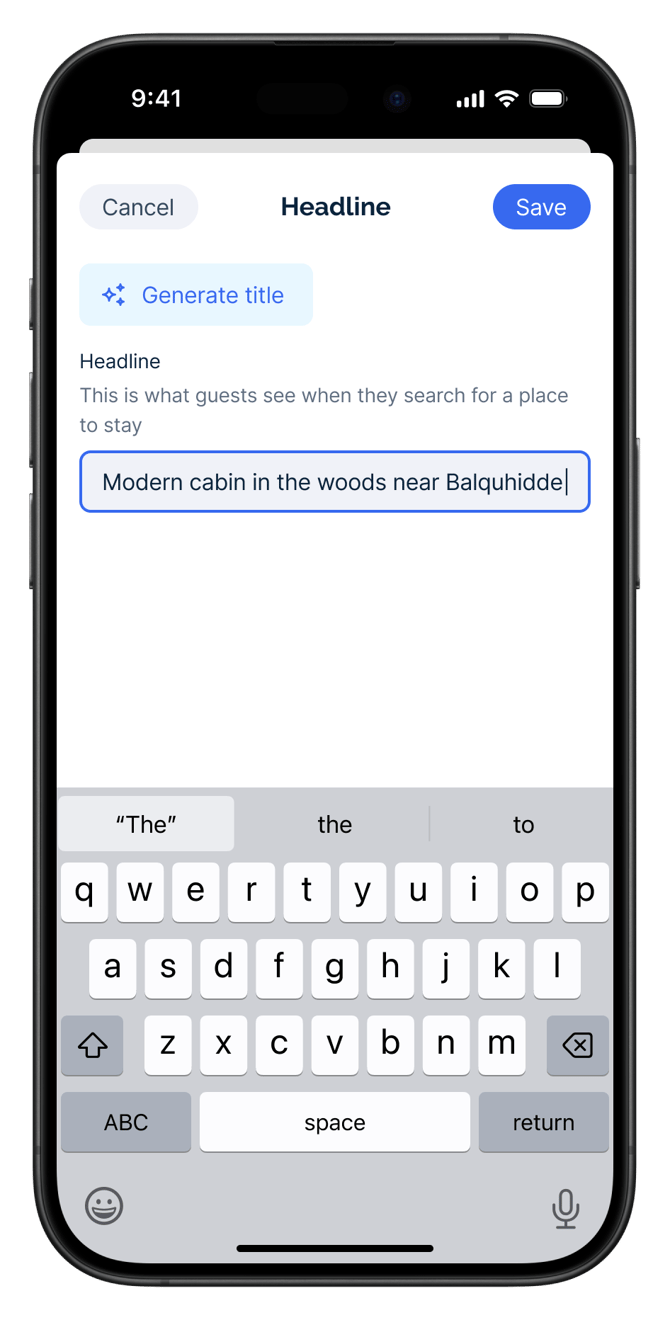
Update your headline- After tapping Headline and Description, you’ll be presented with an option to edit the headline.
- You can either manually edit the headline in the text box provided or use the automatic generation feature to create a headline for you.
- When you’re happy with the headline, save your changes.
Update your description
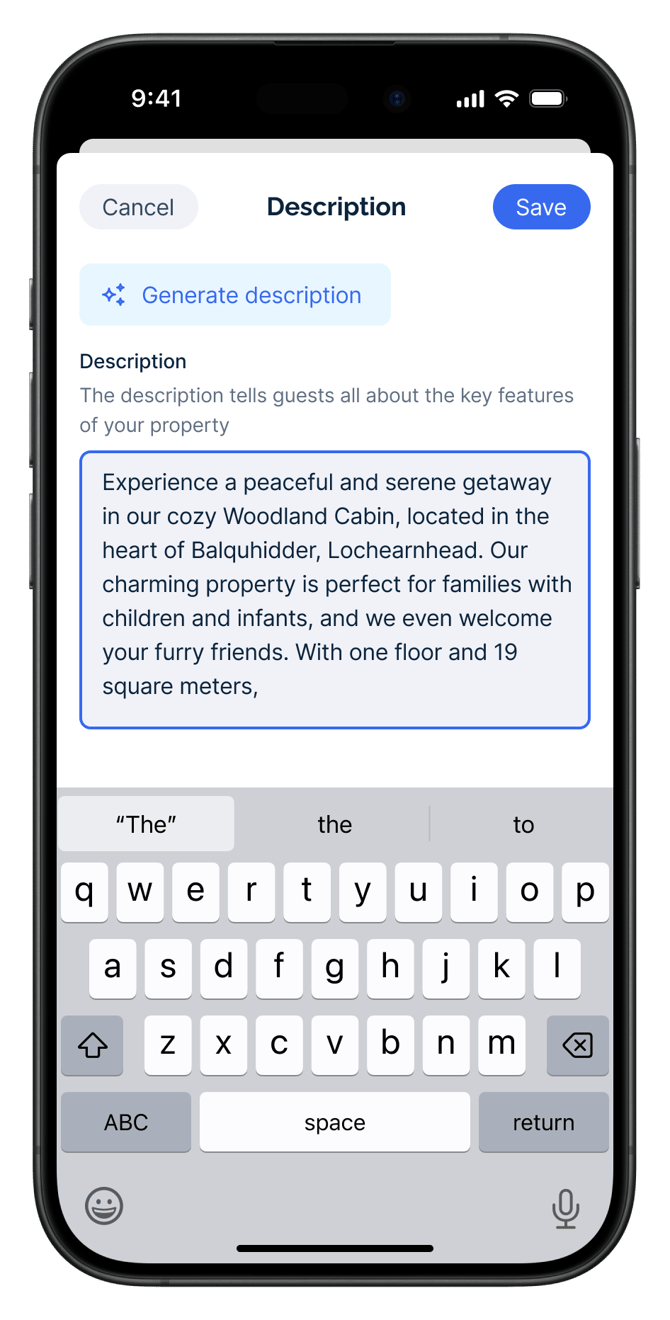
- To edit the description, tap on the description area.
- A text box will appear where you can update the description of your property. Once done, save your changes.
Please be aware that not all booking sites use the description you provide. Sites like Booking.com often generate their own descriptions based on the property information you provide to maintain consistency and optimise search visibility.
How do I change my property’s nickname?
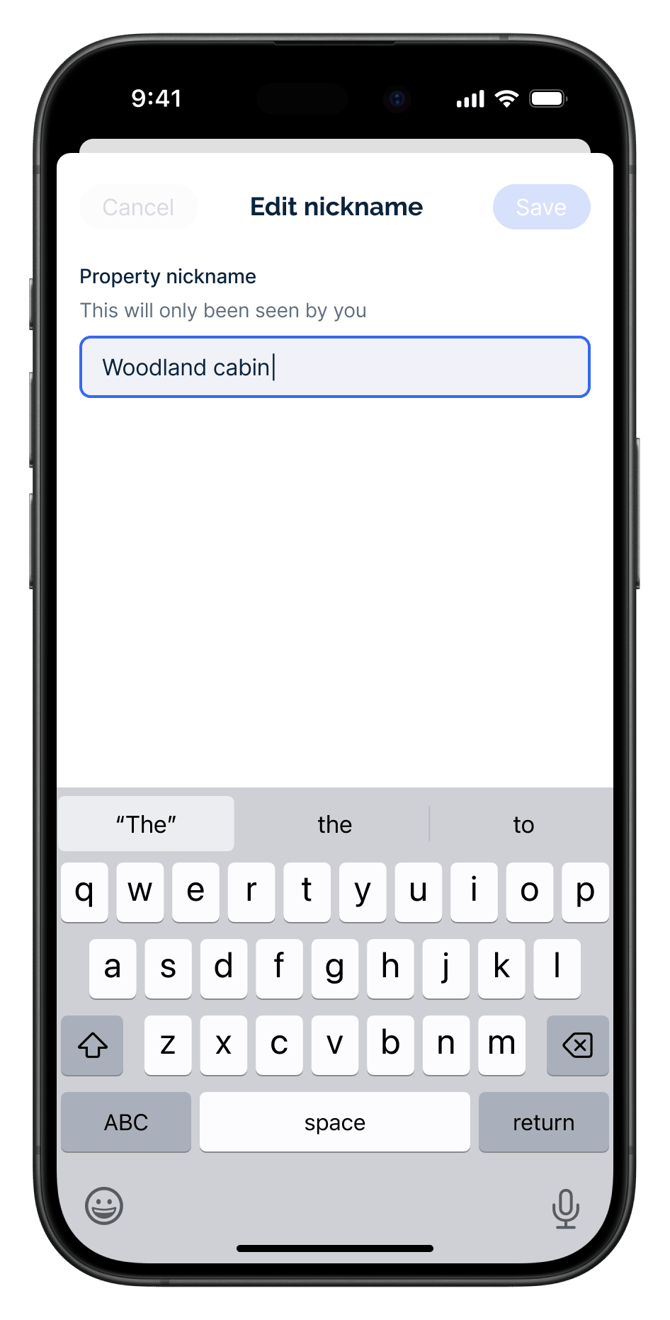
- In the top-right corner of the property screen, tap the options menu and select Edit Nickname.
- Change the nickname of your property, which is how it will be identified within the Travelnest app.
- Save the new nickname once you’re done.