
Showcasing your property with photos
Clear, up-to-date photos help guests understand your property and what to expect during their stay. Use your Travelnest account to manage your gallery and highlight your property’s rooms, amenities and exterior.
Photo recommendations
To build a useful gallery, we recommend:
- Uploading at least 10 high-resolution photos.
- Using landscape photos rather than portrait where possible.
- Including exterior views of your property.
- Showing all rooms and key amenities.
- Adding a floor plan, if available.
Review the suggestions in Travelnest to identify missing photos or other ways to improve your gallery.
For more tips, see our Photo Guide.
How do I manage my property photos?
You can manage your photos on the Travelnest website or in the mobile app. If you manage multiple properties, make sure you select the correct property before making changes.
- To manage photos of your property, you'll need to log into your Travelnest account. Once you're logged in, select the property you want to manage, and then choose the Photos section.
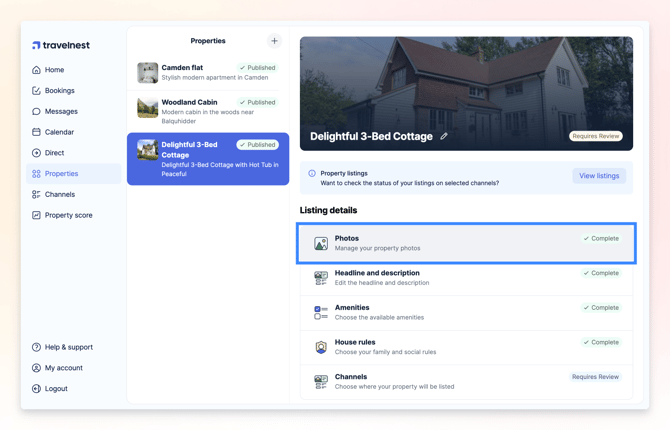
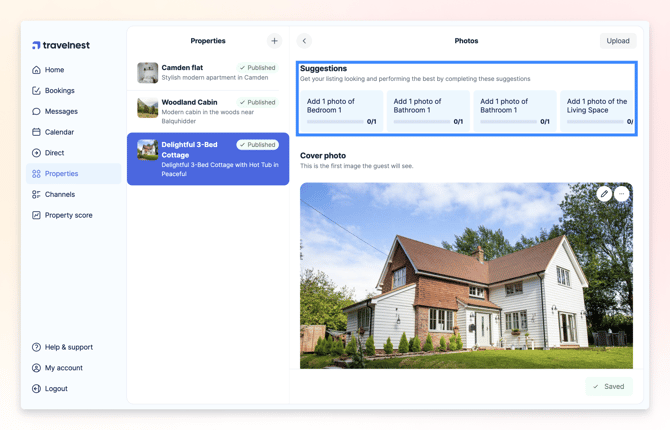
- Here, you can upload new photos, edit existing ones, or reorder them. At the top of this page, you’ll also see Suggestions, which highlight tasks to help you improve your listing’s visuals.
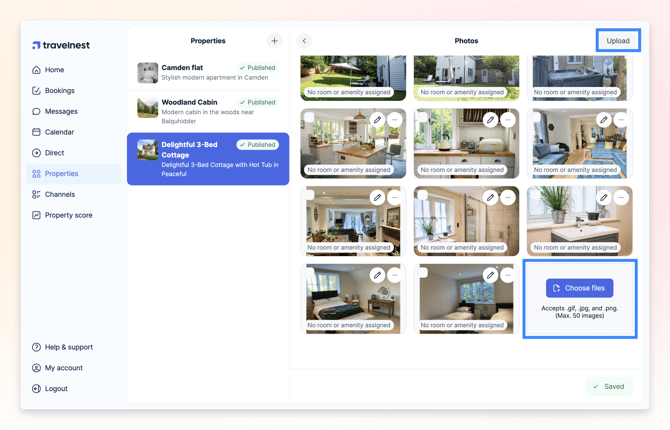
- To upload new photos, look for the upload button – it'll either be at the top right or bottom of the page. Choose the images you want to add from your desktop or mobile device. Your photos will be added automatically to your property gallery.
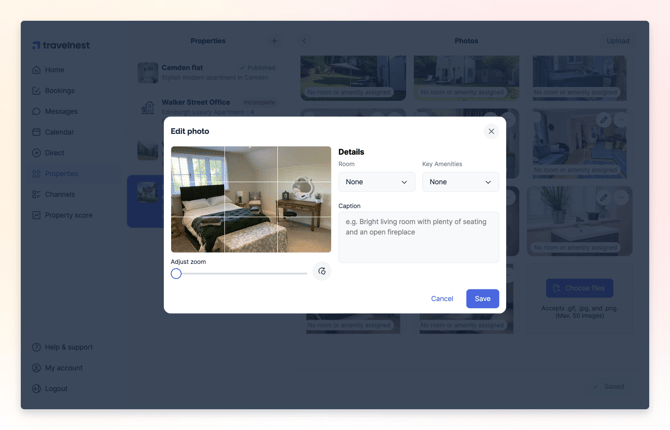
- If you want to edit a photo you've already uploaded, find the one you want and click or tap the pencil icon. You'll be able to crop, rotate or make the photo landscape.
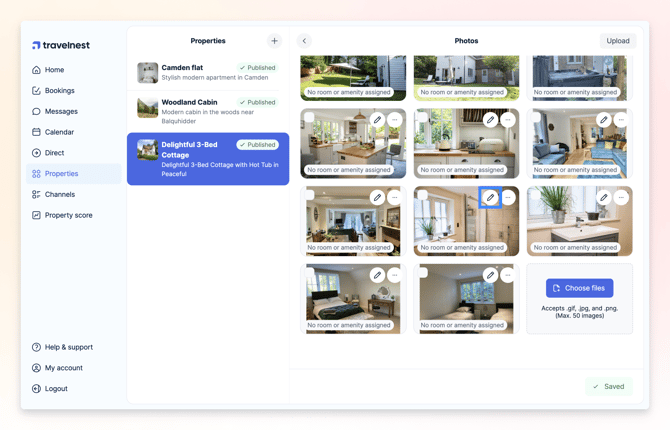
- Additionally, you can add a caption or assign a room and amenity shown in the image. Adding this extra detail helps your listing appear in more relevant searches on supported booking channels.
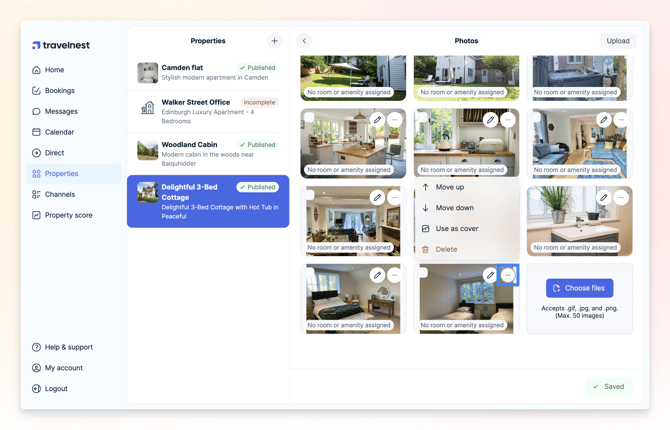
- You can easily change the order of your photos to highlight your best images first. You can drag and drop them in your preferred order, or click or tap the menu button on a photo and choose either move up or move down.
- If you want to make a photo the main cover photo for your listing, simply select Use as cover.
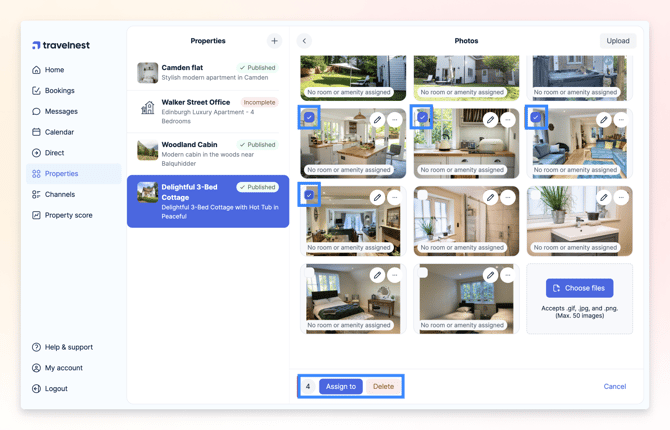
- You can also make changes to multiple photos at once. Just check the boxes next to the ones you want and then choose what you want to do – like assigning a room, amenity or deleting them.
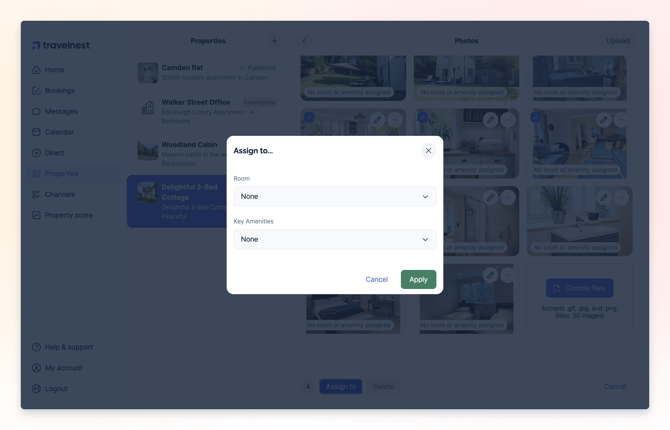
- You can assign a specific room to each photo or highlight key amenities featured in the image.
- Once you’re done on the page, simply click or tap Save changes or, if you’d like to undo the changes you have made, click or tap on Cancel.