
Setting up and updating your property’s pricing
When creating your Property Listing on Travelnest, adding pricing is essential — without it, your property cannot be listed across over 30 top booking sites.
This guide explains how to set up your pricing for the first time, how to update existing pricing when changes are needed, and how to make the most of Smart Pricing. Once pricing is in place, your calendar will automatically become available for guests to book.
If you manage multiple properties, make sure you select the correct property before adding or updating its pricing.
Good to know
- Your property can’t go live on booking sites until you’ve added pricing.
- Booking sites recommend having at least 12 months of pricing available at all times.
- To appear in more searches, allow guests to check in on as many days as possible.
- Your property will be bookable for all pricing periods you add to your Travelnest account.
- If the property is unavailable for certain dates, make sure to block these in your calendar. For instructions, see How to block or unblock dates on your calendar.
- If you ask us to cancel bookings for unblocked dates, a £160 + VAT cancellation fee applies.
How manual pricing works
Travelnest uses nightly pricing. You set a rate for each day of the week within a pricing period in your property’s Pricing and fees section.
A pricing period is a date range with a defined pricing structure, such as a month, week or holiday period. You can create different periods for different times of year.
The rate applies per night for the accommodation, regardless of how many guests stay. Travelnest does not support additional charges based on guest numbers.
How to set up manual pricing
- Log in to your Travelnest account: From your homepage, select the property you’d like to add pricing for. Scroll down to Pricing and availability (1) and select Pricing and fees (2).
Website

Mobile app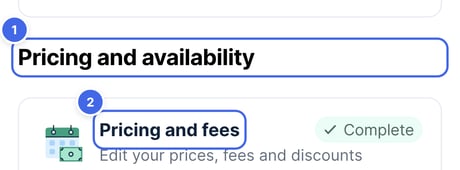
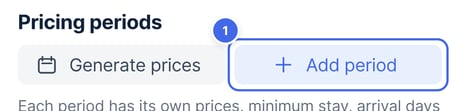
- Add a pricing period: Under Pricing periods, select Add period (1). A new period starts the day after your last one ends.
Website

Mobile app
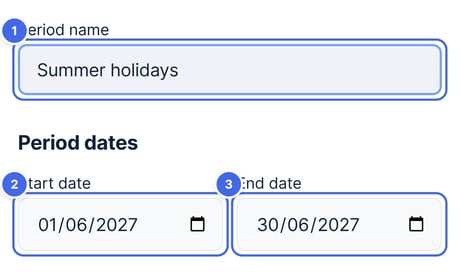
- Name the period and choose its dates: Name each period (1) for easy reference, such as holiday rates or off-peak season. Then choose the Start date (2) and End date (3) to define when the pricing will apply. You can add periods by month or week.
Website

Mobile app
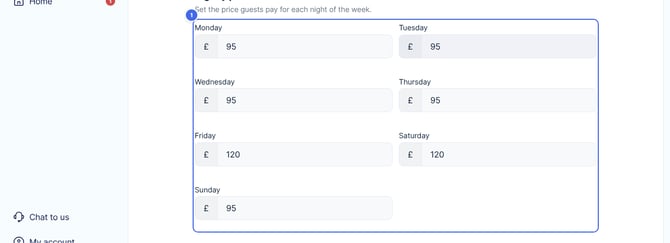
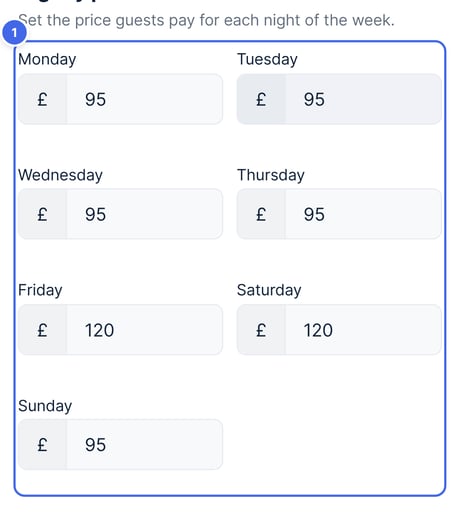
- Add nightly prices: Under Nightly prices (1), add a price for every night from Monday to Sunday. This is necessary even if certain days are blocked on your calendar.
Website
Mobile app
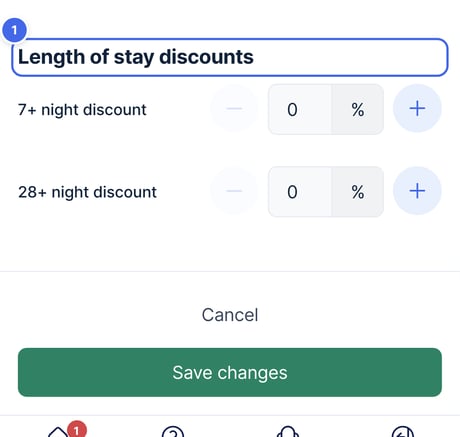
- Apply discounts: Under Length of stay discounts (1), you have the option to add a 7+ night discount or a 28+ night discount to encourage longer bookings.
Website

Mobile app
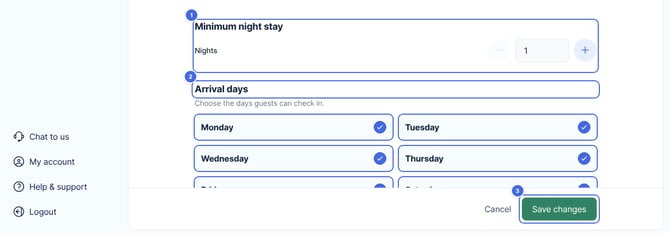
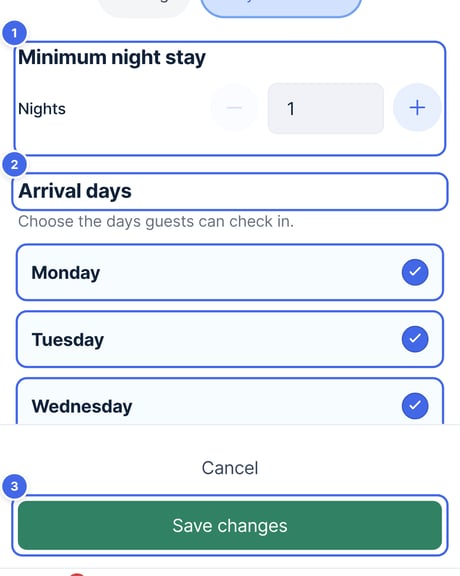
- Set minimum stay requirement: On a phone, select the Stay restrictions tab first. Under Minimum night stay (1), use the plus (+) or minus (-) buttons to adjust the minimum number of nights.
- Select arrival days: Under Arrival days (2), choose the days guests can check in. You can deselect any day when guests should not be able to arrive. For example, if you deselect Tuesday, guests will not be able to check in on that day.
- Save the period: Select Save changes (3). Your prices go live on your channels straight away. Ideally, add prices for the next six to twelve months.
Website
Mobile app
To add more periods, return to Pricing and fees, select Add pricing period and enter the dates, restrictions and rates for the next period. Aim to build at least 12 months of pricing coverage.
Faster ways to add pricing
Generate 24 months of prices
Select Generate prices next to Add period. Enter a standard price and choose a seasonality pattern. Travelnest creates a pricing period for each month for the next 24 months.
For more information, see How to set up pricing by seasonality using Generate prices.
Set prices when no upcoming pricing exists
If your property has no prices for upcoming dates, you will also see Set your prices. Enter a weekday price and a weekend price to create monthly pricing periods for the next 24 months. You can then edit each period using the instructions below.
Use Smart Pricing instead
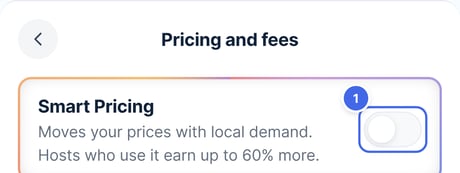
Manually adding pricing can be time-consuming. We recommend enabling Smart Pricing for automatic pricing based on market data.
Where Smart Pricing is available, turn on the Smart Pricing switch (1) at the top of Pricing and fees.
For instructions, see How to enable and optimise Smart Pricing.
Website

Mobile app
How to edit an existing pricing period
Review your pricing regularly to keep your property competitive. For example, you may want higher nightly rates over Easter, Christmas or New Year.
- Log in to your Travelnest account and choose your property. Select Pricing and fees.
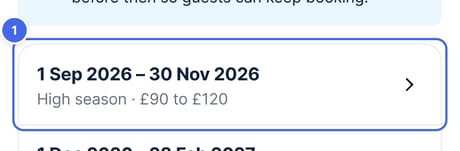
- Under Pricing periods (1), you’ll see all your pricing periods with their dates and prices. Select the period you want to change.
Website

Mobile app
- Update your rates, arrival days, minimum nights or discounts as needed, then select Save changes.
How to estimate your take-home payment
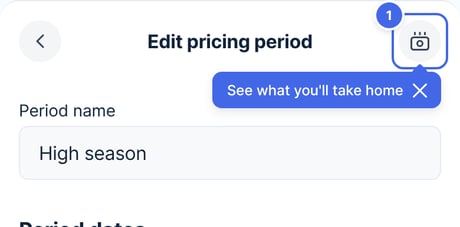
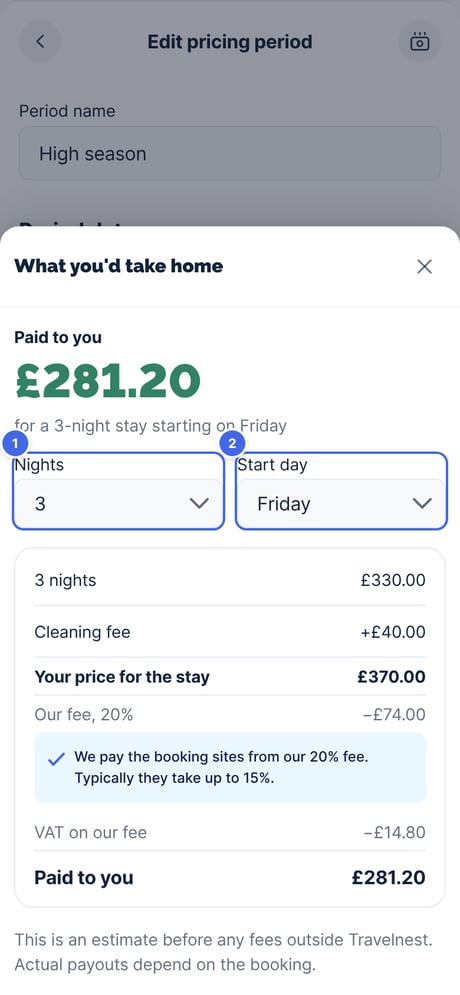
To check what you'd be paid for a stay in a pricing period, select Estimate take-home (1) at the top of the period's page. On a phone, it's the icon at the top right.
Website

Mobile app
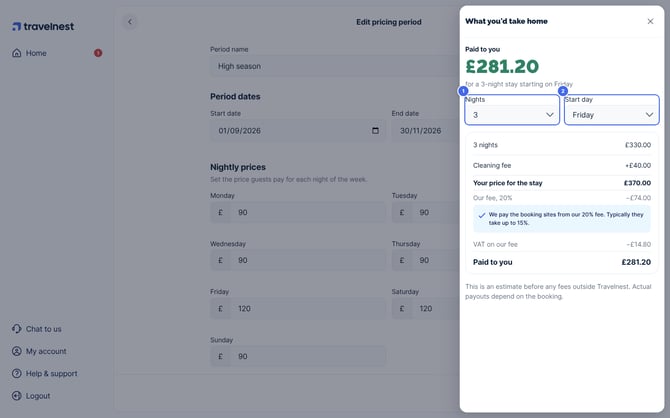
Choose the number of Nights (1), from your minimum night stay up to 30, and the Start day (2), from your arrival days. We price each night from the period's nightly prices, take off any length of stay discount and add your cleaning fee. You'll see your price for the stay, our 20% fee, VAT on our fee if your account is registered in the UK, and what's paid to you. The estimate uses the prices on the page, so you can try new prices before you select Save changes.
Website
Mobile app
How to change settings for all upcoming periods
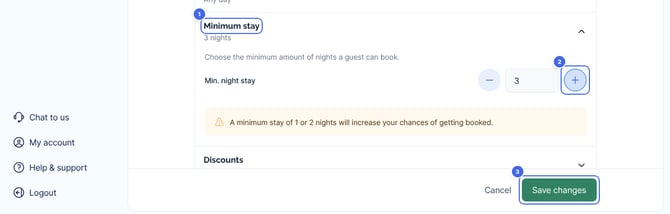
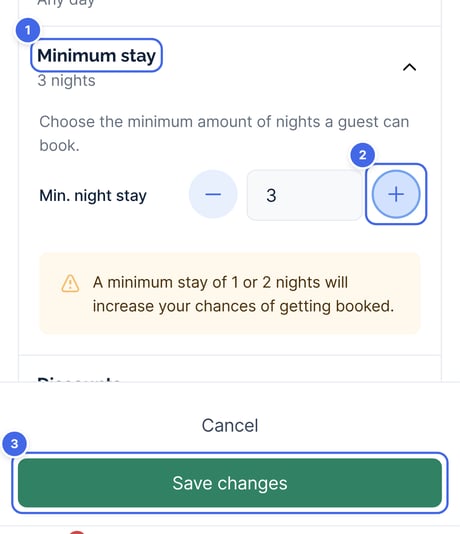
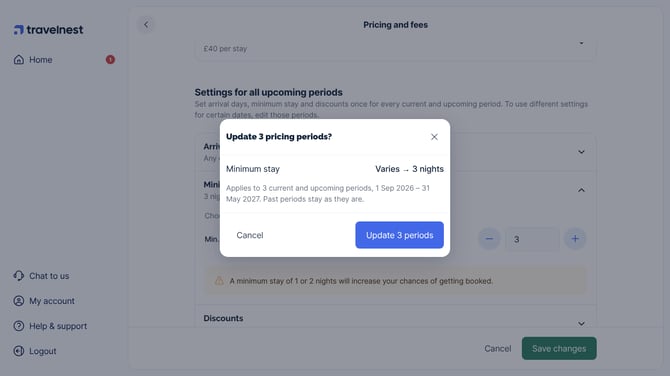
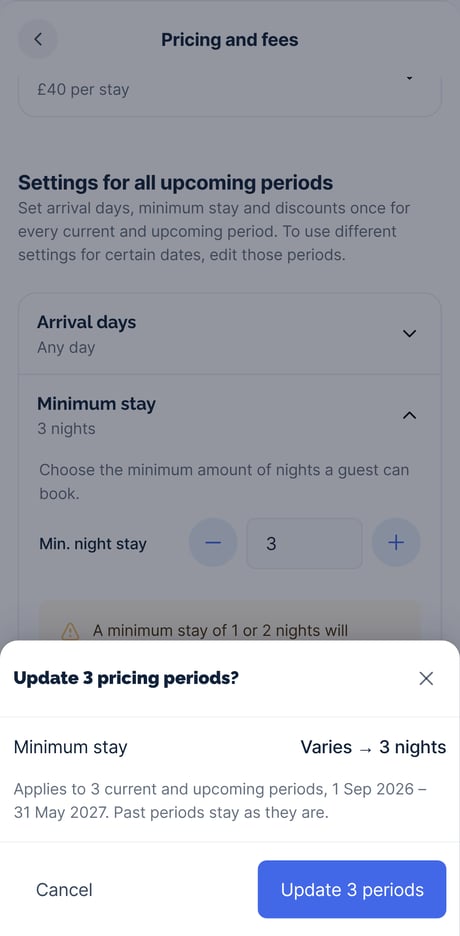
To use the same arrival days, minimum stay or discounts for all your current and upcoming periods, scroll down to Settings for all upcoming periods on Pricing and fees. Select the setting (1), change it (2), then select Save changes (3). We’ll show you what’s changing and which periods it applies to before you confirm. Past periods stay as they are. To use different settings for certain dates, edit those periods instead.
Website
Mobile app
Website
Mobile app
Your cleaning fee is under Fees on the same page. It is charged once per stay and is the same for every pricing period. For more information, see Cleaning fees.
Examples of pricing adjustments
Weekend pricing
To increase weekend rates in August, open the pricing period covering those dates. Update the rates for Friday, Saturday and Sunday, then select Save changes.
Seasonal uplift for Easter or other holidays
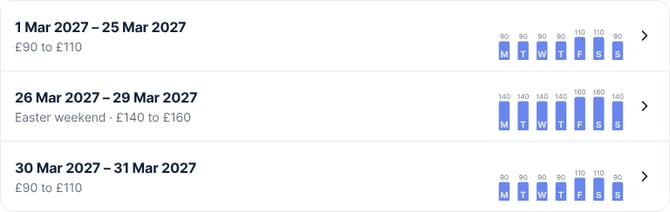
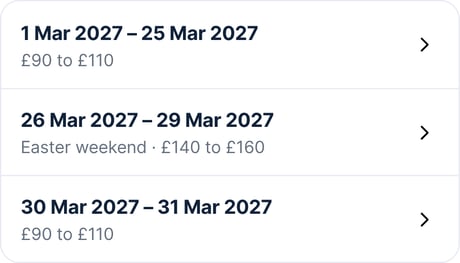
If an existing period covers a full month but you want higher rates for a shorter period, such as Easter weekend:
- Edit the existing period to end the day before the holiday period begins.
- Create a new pricing period covering the holiday dates and enter the higher rates.
- Add another period after the holiday to return to your standard pricing.
The examples below show the pricing periods before and after adding a holiday period.
Website — before adding the holiday period

Mobile app — before adding the holiday period

Website — after adding the holiday period
Mobile app — after adding the holiday period
How to add a new pricing period
Select Add period, name it and set the start and end dates. Enter nightly prices and discounts, then choose the minimum stay and check-in days. All periods use your property’s currency. Select Save changes.
How to offer long-stay discounts
Under Length of stay discounts in a pricing period, enter a percentage for 7+ night discount or 28+ night discount, then select Save changes.
To use the same discounts for every current and upcoming period, change Discounts under Settings for all upcoming periods on Pricing and fees.
How to remove a pricing period
To remove a pricing period, select the period you wish to delete and select Delete period (1). We’ll ask you to confirm first. This will remove the period and automatically update your listings.
Website

Mobile app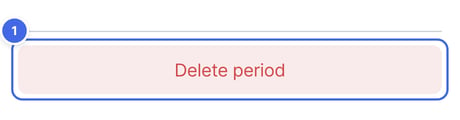
Optimising your pricing
There are many ways to optimise your pricing throughout the year to increase revenue. See our guide on How to price your property competitively to attract bookings for expert tips.
Setting up pricing by seasonality
To create seasonal pricing periods for the next 24 months, use Generate prices. For instructions, see How to set up pricing by seasonality.
You can also create a pricing period for each season manually, each with its own nightly prices, minimum stay and check-in days.