
Multiple properties, one account
You can manage more than one property in your Travelnest account. Once your first property is live, you can add additional properties and complete the setup for each one.
What if my first property is not live yet?
Complete your first property’s setup and get it live before trying to add another property.
Once your first property is live, you can add additional properties from your Travelnest account.
How do I add an additional property?
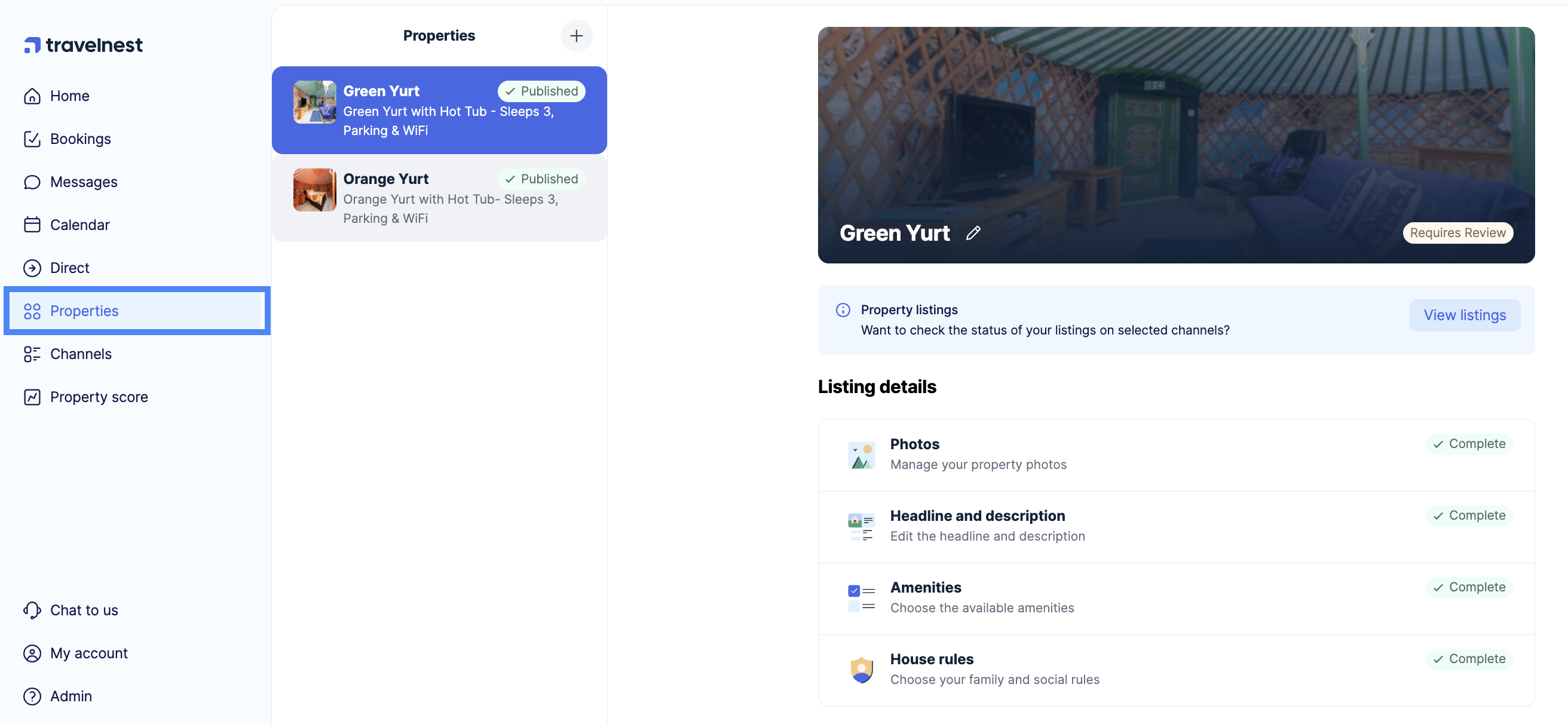
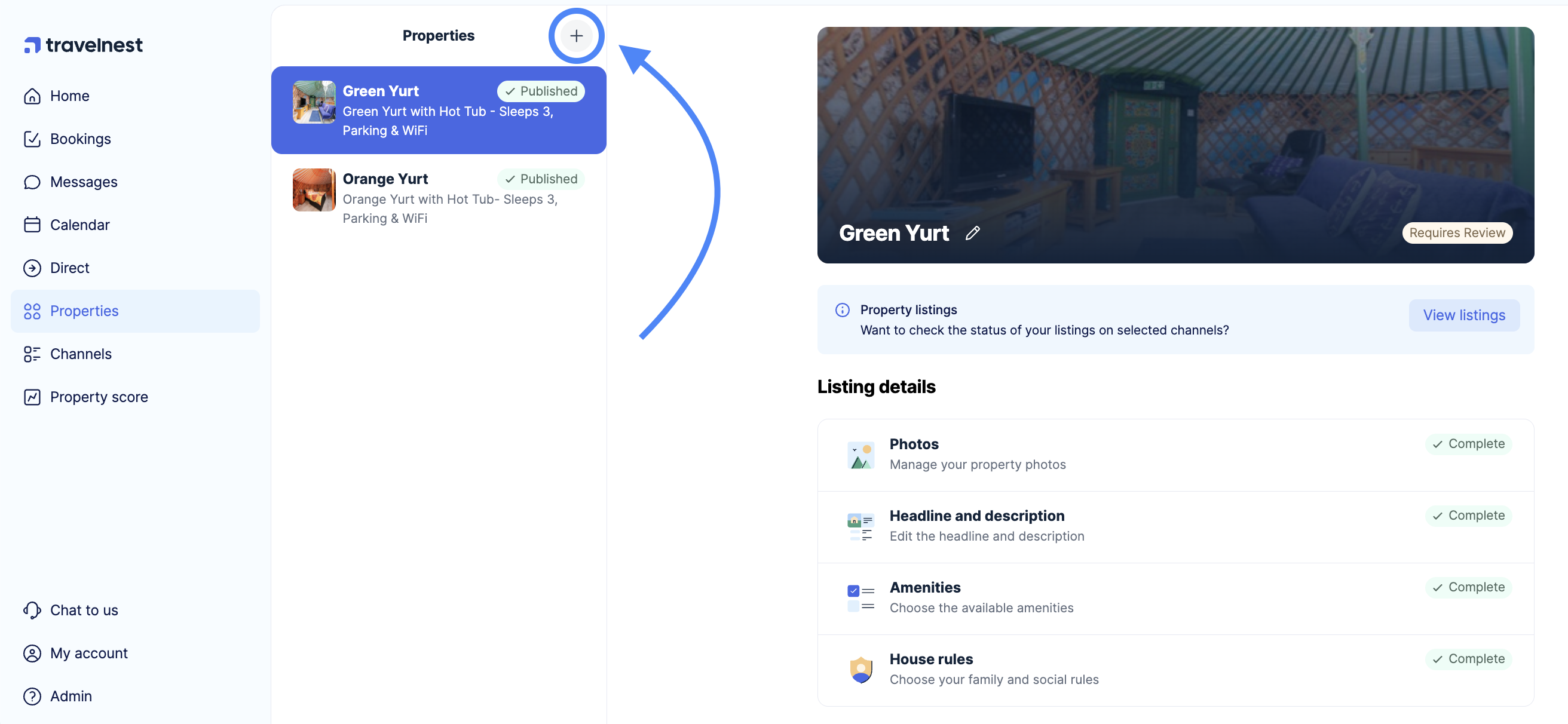
- Click the + (plus) button next to the word Properties in the middle column
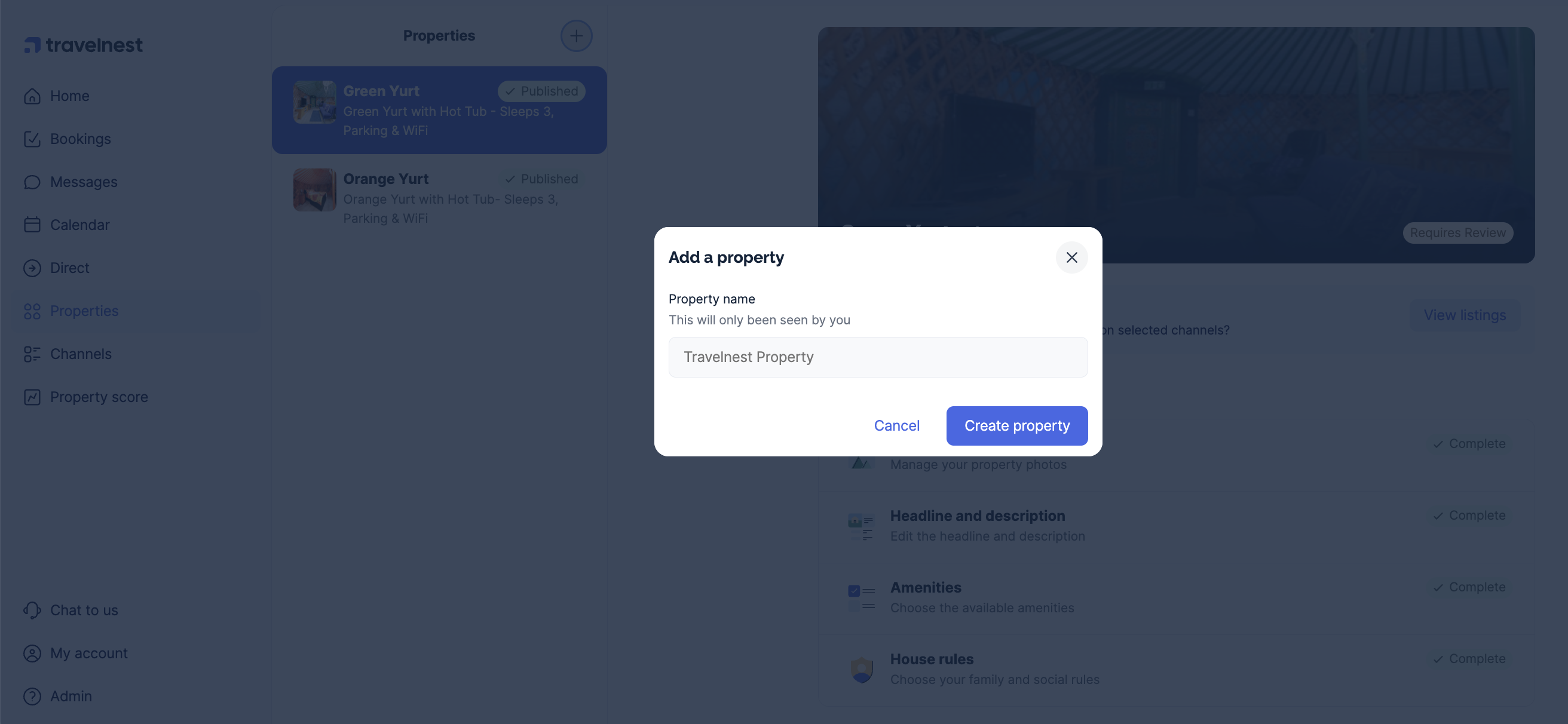
- Enter your property name and click Create property.
Once created, you will need to input your additional property's details just as you did when you first signed up with Travelnest.
Tips for managing new properties
- Use Smart Pricing to set rates automatically using market data.
- Use calendar synchronisation to connect supported external calendars and help keep availability up to date.
- Book a free optimisation call for each new property listing to discuss ways to improve its presentation and appeal to guests.
If you manage multiple properties, make sure you select the correct property before updating its details, pricing or availability.