
Three easy ways to view your calendar
There are three simple ways to access your Travelnest calendar:
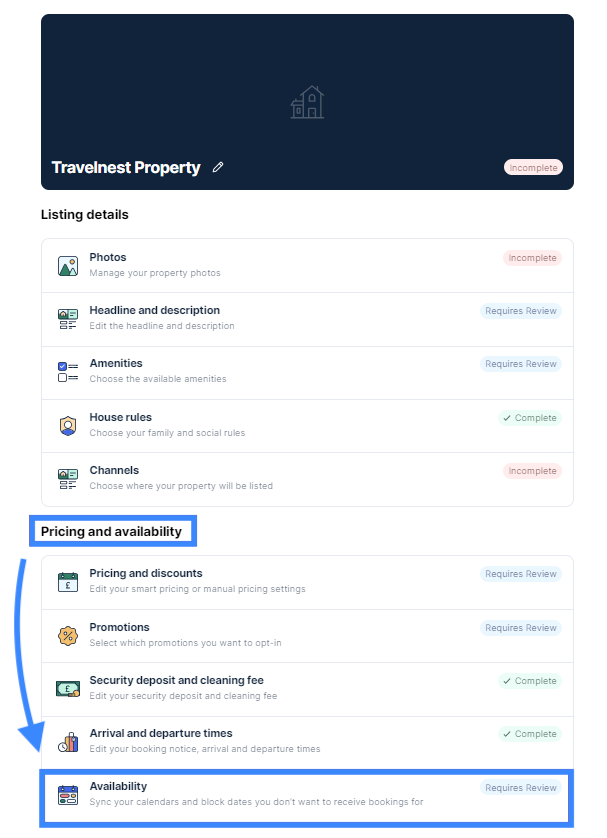
Option 1 – Via Pricing and availability
- Log in to your Travelnest account.
- Navigate to Pricing and availability for your property.
- Look for the Availability subsection — this is where your calendar will be displayed.
Good to know: This option is especially useful if you haven’t yet published your property with us and simply want to locate your calendar to synchronise with any external calendars and avoid double bookings.
Option 2 – Via your dashboard home page
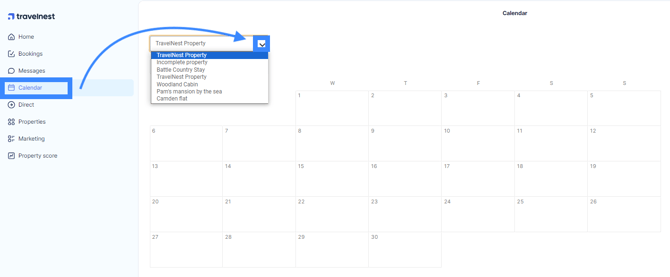
- From the left-hand side menu (or dashboard), select Calendar.
- Once on the calendar page, if you manage multiple properties, use the drop-down at the top to choose the specific property whose calendar you wish to view.
- The selected property’s calendar will then be revealed for you to review or edit.
Option 3 – In the Travelnest app
- Open the Travelnest app and tap Calendar at the bottom of the screen.
- If you manage multiple properties, you’ll see all of them together. Tap a property to open its calendar.
Frequently asked questions
How can I synchronise my Travelnest calendar with external calendars if I am listing my property outside Travelnest?
You can follow our guide on How to connect/sync a calendar to your Travelnest account.
How do I manually block dates on my Travelnest calendar?
Whether you’ve received bookings from other sources or your property is unavailable for a period, you can manually block dates. We have a step-by-step guide to show you how to block or unblock dates within your Travelnest calendar.
What happens if I need to cancel a booking?
As outlined in our Terms and Conditions, we reserve the right to charge a £160 (plus VAT) cancellation fee per booking if a double booking occurs because your calendar was not synchronised or external dates were not manually blocked.
To avoid this, make sure your external calendars are properly connected via iCal, or manually block any unavailable dates in your Travelnest calendar.
If you need help cancelling a booking, please see our detailed step-by-step cancellation guide here for more information.