
How do I manage unavailable dates?
Keeping your calendar up to date is essential to avoid double bookings and ensure guests can book your property without issues. Travelnest makes this easy by syncing your listings with all major booking platforms, including Airbnb, Booking.com, Expedia, Vrbo, Holidu, and HomeToGo.
If you also take direct bookings via your own website, or maintain separate listings outside Travelnest (for example, directly on Airbnb or Vrbo), you’ll need to link those calendars to your Travelnest account.
For a full step-by-step guide, please see our article How to connect/sync a calendar to your Travelnest account.
How to manually block dates
You can block dates on your Travelnest calendar to show when your property is unavailable or already booked.
You can block or unblock dates on the Travelnest website or in the Travelnest app. In the app, go to Calendar, select the dates, then tap Block dates. To unblock, tap the blocked dates and select Remove block.
To block dates:
-
Log in to your Travelnest account on the website or in the app.
-
Open the calendar for the relevant property.
-
Select the dates you want to block.
-
Save your changes.
Steps to block dates
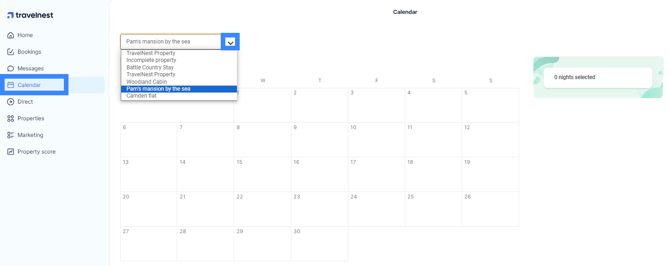
- Log in to your Travelnest account and select Calendar from the left-hand menu. If you have multiple properties, select the property you want to manage from the dropdown above the calendar:
- Click on the dates you wish to block. You can add a reason and notes if needed.
- Click Blocked, then Confirm to save:
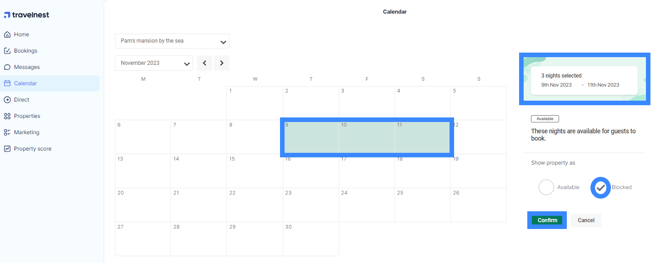
The blocked dates will now appear on your calendar, so guests cannot book them.
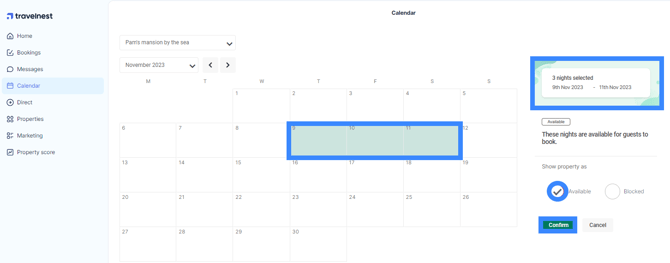
To unblock dates:
- Select the blocked dates, click Available, then Confirm:
Blocking a large date range
If you need to block a large date range, Travelnest makes this simple:
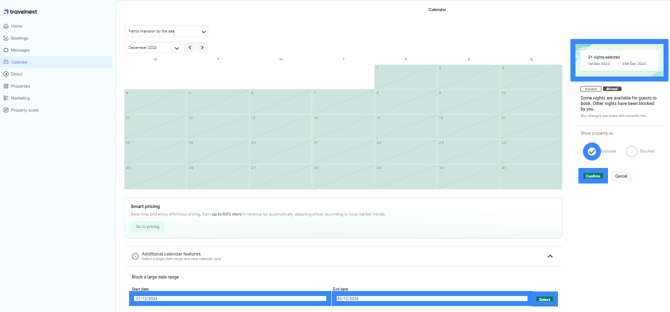
- Scroll to Additional calendar features below your calendar and select Block a large date range
- Choose a Start date and an End date. Your calendar will display the total nights blocked
- Click Blocked, then Confirm to save
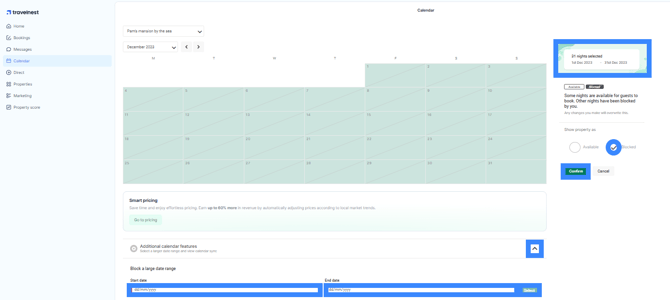
- To unblock the same date range, simply select those dates again, click Available, and then Confirm.
Frequently asked questions
Will the changes I make in Travelnest update on booking sites?
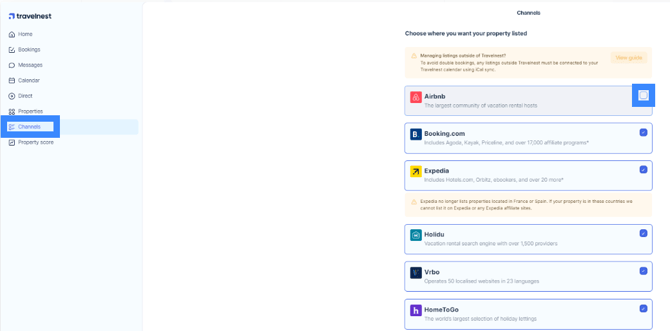
Yes – any updates you make in your Travelnest calendar will automatically appear on all booking sites where your property is listed. You can view and manage your channels in the Channels section from the left-hand menu:
What happens if I need to cancel a booking?
As outlined in our Terms and Conditions, we reserve the right to charge you a £160 (plus VAT) cancellation fee, per cancelled booking, where a double booking has arisen as a result of a failure to use iCal or block externally booked or unavailable dates manually. To avoid this, always connect your calendars with iCal and manually block unavailable dates.
For full instructions on cancelling a booking, please refer to our guide here.