
Helping guests check in smoothly
Clear check-in instructions help guests get inside your property and start their stay smoothly. Save the check-in method and instructions for each property so the correct details are ready to share.
If you manage multiple properties, make sure you select the correct property before adding or updating its check-in details.
What can I add?
For each property, you can add:
- Check-in method: How guests get into your property, such as a smart lock.
- Check-in instructions: Practical information to help guests get inside.
Keep your instructions short and clear. For example, explain which door to use, where the key safe is and its code.
How do I add them from my Home page?
You can view or update your check-in instructions on the Travelnest website or in the mobile app. Follow the instructions and screenshots labelled Website or Mobile app, depending on which you’re using.
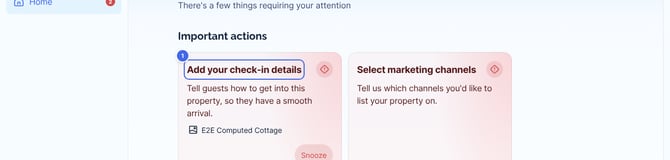
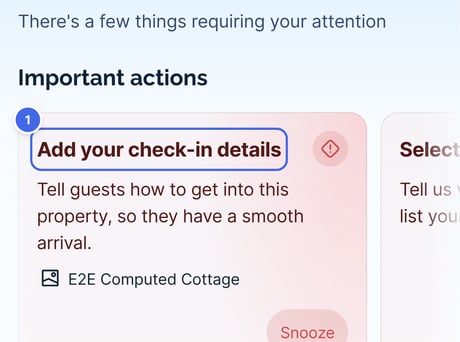
If a property does not have check-in details, an Add your check-in details card appears on your Home page. On the website, find it under Important actions.
- Click the Add your check-in details (1) card.
Website
Mobile app
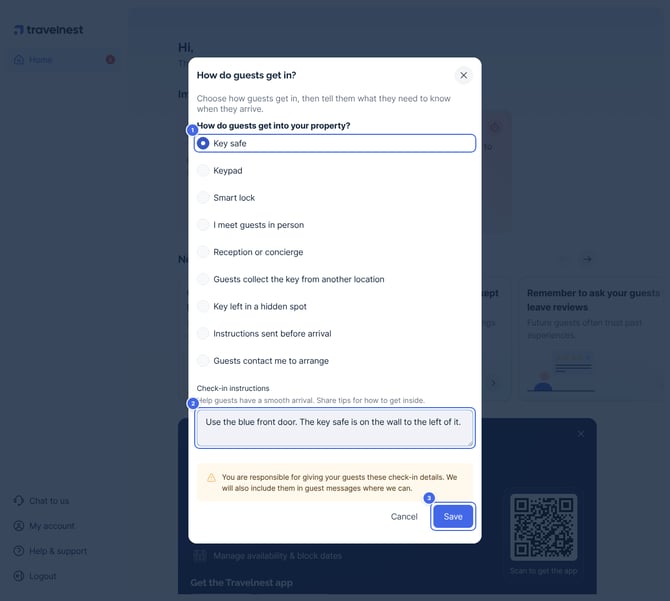
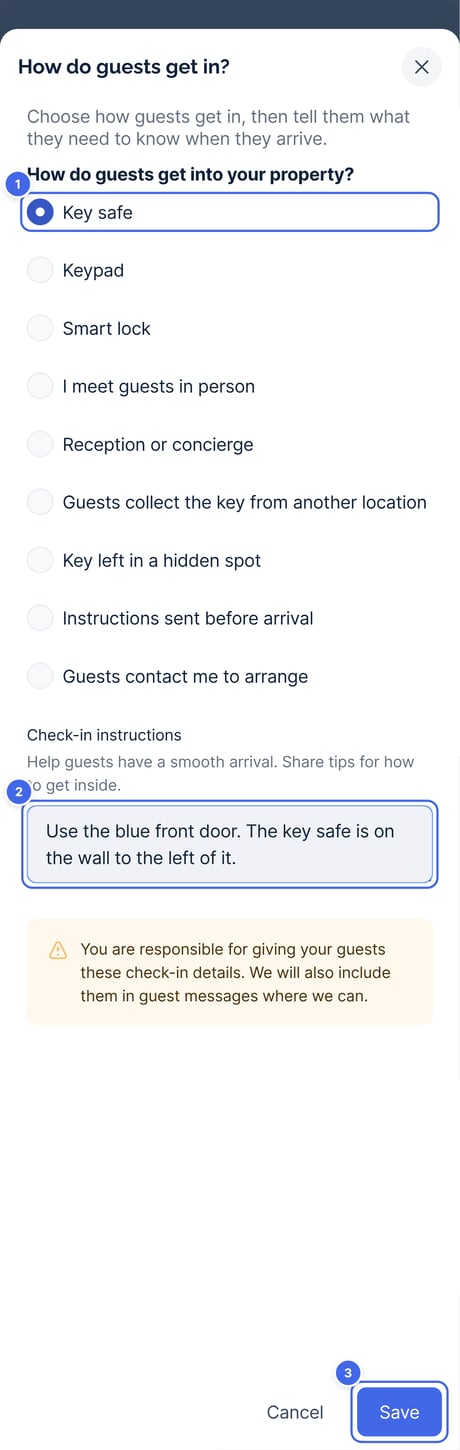
- Under How do guests get into your property? (1), choose how guests get in.
- Add your tips in the Check-in instructions (2) box.
- Click Save (3).
Website
Mobile app
Once you save, the card disappears. If you have more than one property, you'll see a card for each one that still needs check-in details.
How do I add them from the property page?
- Go to Properties and select your property.
- Under Pricing and availability, click Arrival and departure times.
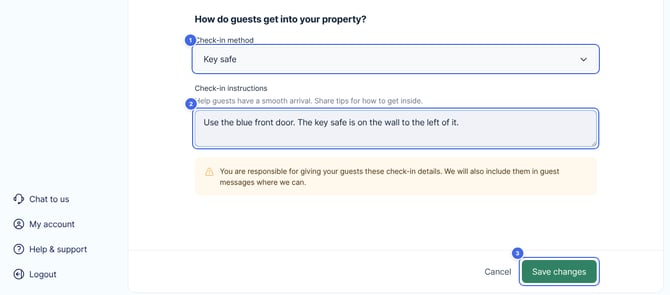
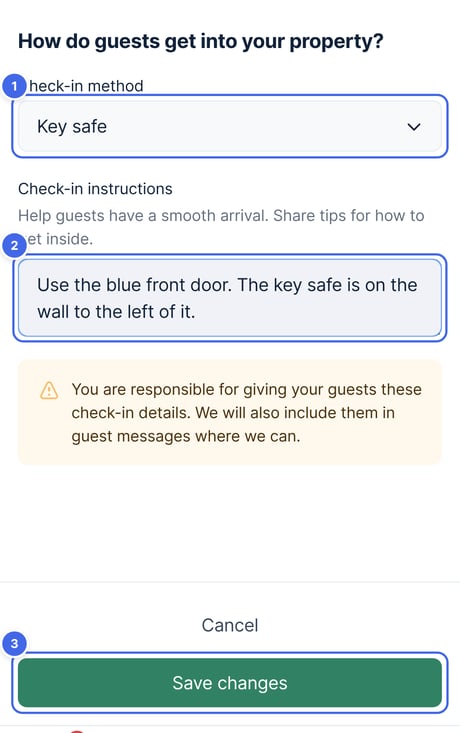
- Under How do guests get into your property?, choose your Check-in method (1).
- Add your tips in the Check-in instructions (2) box.
- Click Save changes (3).
The button at the bottom shows Saved when everything is up to date, and changes to Save changes once you've edited something.
Website
Mobile app
How do I add them on the mobile app?
- Open the property and stay on the Home tab.
- Tap How guests get in, just below Arrival and departure.
- Choose your Check-in method and add your Check-in instructions.
- Tap Save.
If you see an Add your check-in details card on the app's Home screen, you can also tap it to go straight to this screen.
Each property has its own check-in method and instructions, so you'll need to add them to each one. You can come back and update them at any time.
How will my check-in instructions be used?
Your check-in details are used in two ways:
- You share them with your guests. Add the short code
@{check-in-instructions}to a scheduled messaging template and it will fill in your instructions for each guest. Scheduled messaging is available for Airbnb and Booking.com bookings. - Our Guest Support team checks them if a guest gets in touch. If a guest contacts the team asking how to check in, they'll look at your property's check-in details first. If you've added them, the team will share them with the guest directly, once they've confirmed who the guest is, instead of calling you.
Please remember: you're still responsible for making sure your guests receive their check-in details.