
Keeping your property information up to date
Complete and accurate property information helps guests understand what your property offers and what to expect during their stay.
Review your property details regularly to make sure they are correct, complete and present your property clearly. You can manage these details on the Travelnest website or in the mobile app.
What is the Property Profile?
Your Property Profile holds the information about your property and how you want to advertise it, including photos, descriptions, amenities, availability, house rules and pricing.
On the website, the information is organised into three main areas:
What is the Property Profile?
The Property Profile is where all the information about your property and how you want to list it is held; everything from your photos, written description and availability to house rules and pricing can be found in this section.
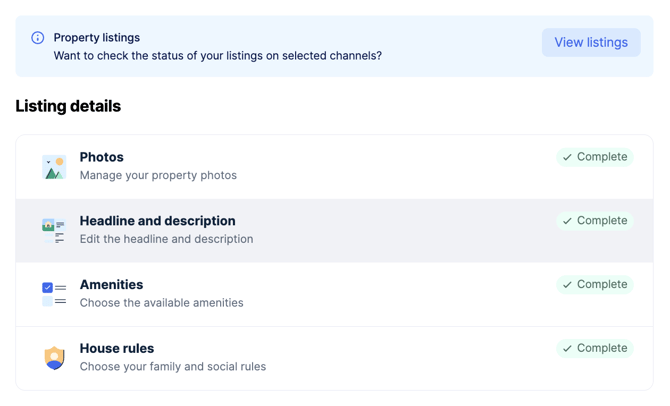
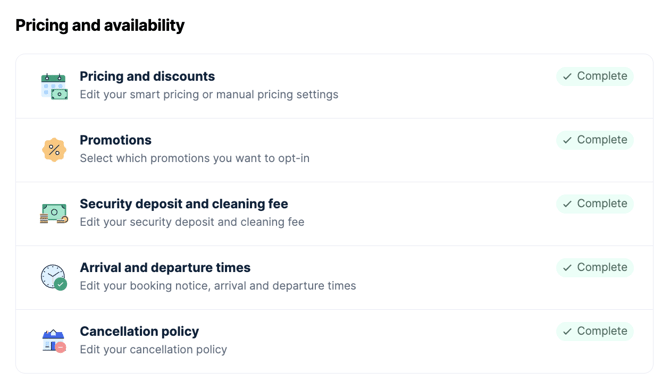
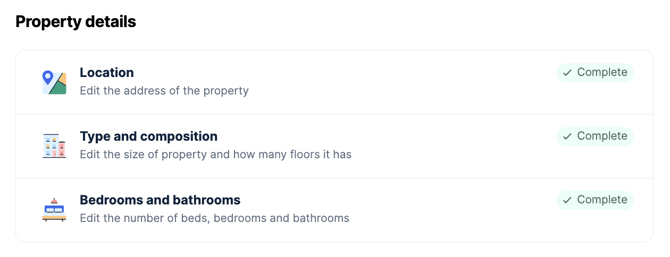
On the website, the information is organised into three main areas:
- Listing Details
- Pricing and Availability
- Property Details
Complete all required sections of your Property Profile before your property can go live on booking sites.
What do the status indicators mean?
- Green — Complete: The section has been completed.

- Red — Incomplete or Changes Required: The section needs your attention.


How do I update my property details?
If you manage multiple properties, make sure you select the correct property before making changes.
1. Open your property
Log in to your Travelnest account, go to Properties and select the property you want to update.
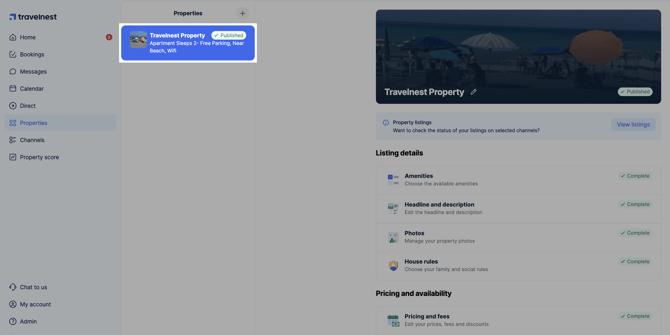
2. Choose the details you want to update
On the website, find the relevant section under Listing Details, Pricing and Availability or Property Details.
For example:
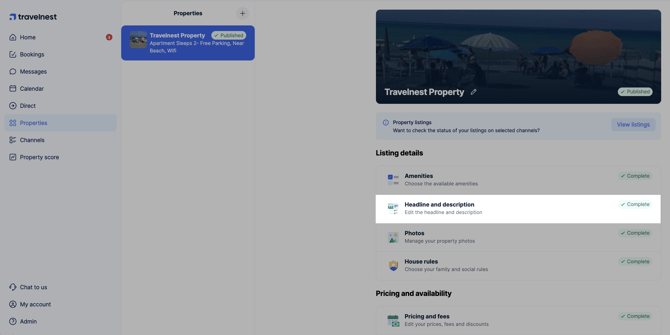
- To edit your headline or description, select Headline and description under Listing Details.
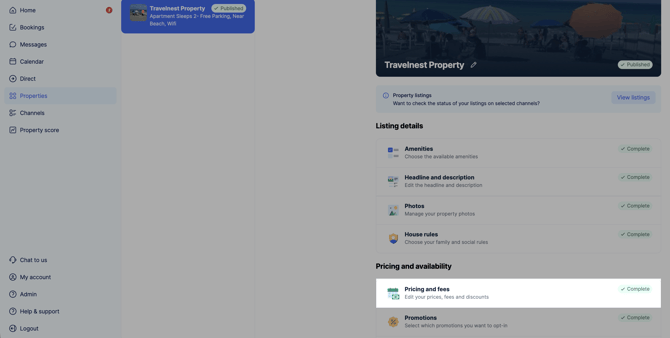
- To update your pricing, select Pricing and fees under Pricing and availability.
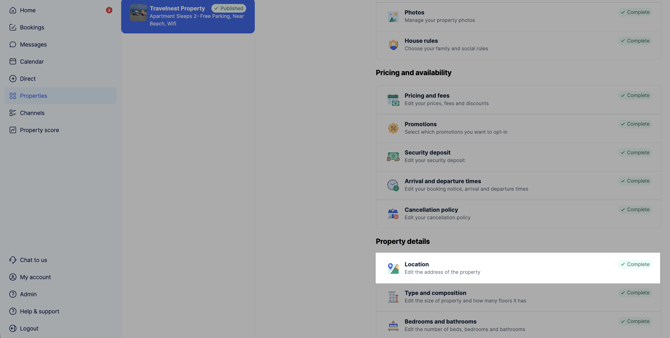
- To review your location, select Location under Property details.
In the mobile app, open the relevant setting for the selected property. The layout may differ from the website.
3. Make and save your changes
Update the information, then select Save changes where shown.
How do I update promotions?
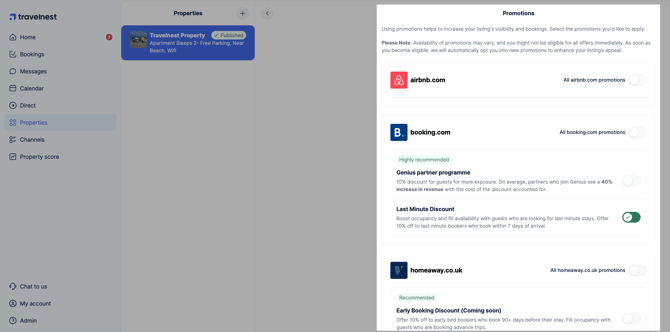
Open Promotions to review the available offers.
- To activate a promotion, tick the box beside it and select Save changes.
- To remove a promotion, untick its box and save your changes.
Frequently asked questions
What happens when I save changes to my property information?
Travelnest sends the updates to your selected booking sites. Each platform controls when changes appear and how the information is displayed.
Some sites generate their own listing descriptions. Your Travelnest description may therefore not appear word for word on every booking site.
Can I cancel changes if I make a mistake?
Before saving, use the section’s cancel option to discard edits where available. If you see a prompt about unsaved changes, choose whether to continue editing or discard them.
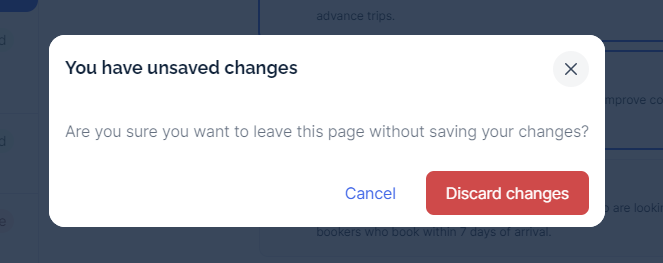
If you have already saved an incorrect change, reopen the section, correct the information and save it again.