
What a booking notice period does
Your booking notice period sets the minimum amount of time between when a guest makes a booking and their arrival date.
For example, if your notice period is set to 1 day, a guest can book up until 23:59 on the day before arrival.
Booking notice periods help you:
- Plan preparation before guests arrive.
- Avoid same-day bookings if you cannot accommodate them.
- Control how close to arrival a guest can book.
What a booking notice period does not do
A booking notice period does not:
- Create time between one guest’s check-out and the next guest’s check-in.
- Automatically block days between bookings.
- Act as a preparation buffer between stays.
Available booking notice options
You can choose from the following notice periods:
- 1 day
- 2 days
- 3 days
- 7 days
How to set your booking notice period
If you manage multiple properties, make sure you select the correct property before updating its booking notice period.
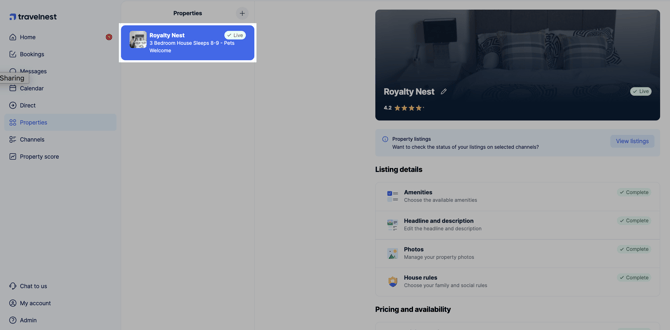
1. Open your property
Log in to your Travelnest account. From your homepage, select the property you want to update.
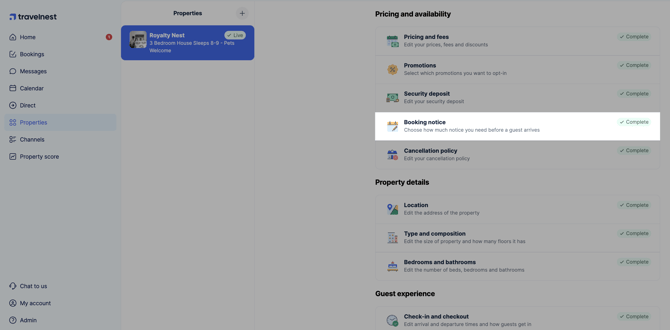
2. Open Booking notice
Under Pricing and availability, select Booking notice.
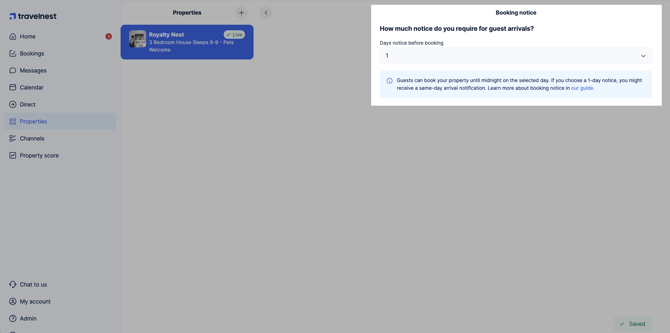
3. Choose your notice period and save
- Under How much notice do you require for guest arrivals?, select the number of days’ notice you need.
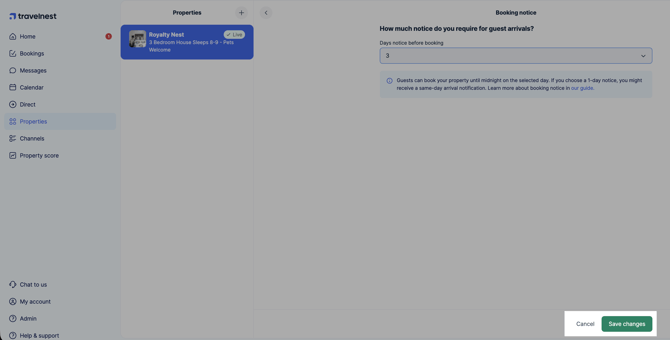
- Select Save changes at the bottom of the page to update your listings across booking sites.
A 1-day notice period allows a guest to book until 23:59 on the day before arrival; it does not guarantee a full 24 hours’ notice. Because booking and payment processing can take time, you may receive the confirmation on the day the guest arrives.
If you are trying to add a gap between bookings
Travelnest does not currently support automatic gaps or buffers between bookings.
If you need preparation time between guest stays, you can:
- Manually block the dates you need to keep unavailable in your calendar.
- Review upcoming bookings and plan preparation time accordingly.
For instructions, see How do I block or unblock dates on my calendar?.